How do I view the email logs for my domain?

How to find and view email logs for ImprovMX forwarded emails.

The logs available from your ImprovMX dashboard give you a comprehensive overview of all email activity related to the domain(s) in your account. This feature is available to both free and premium tier users.

How to Access Email Logs

  1. Navigate to your dashboard - Log into your ImprovMX account at app.improvmx.com
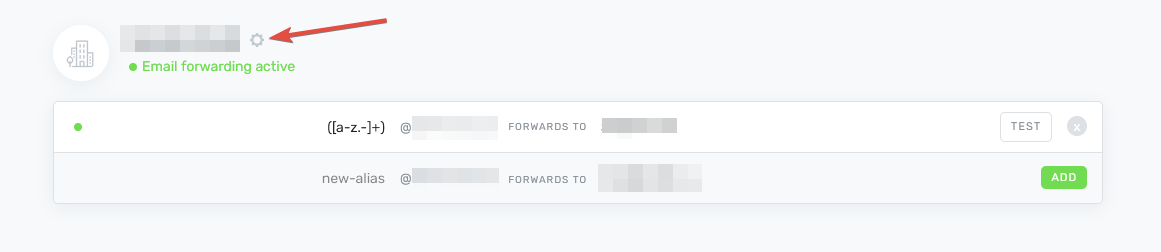
  2. Locate domain settings - Find the settings gear icon positioned next to the domain for which you want to review logs
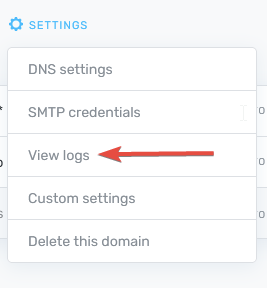
  3. Select View logs - Click the View logs option from the settings menu
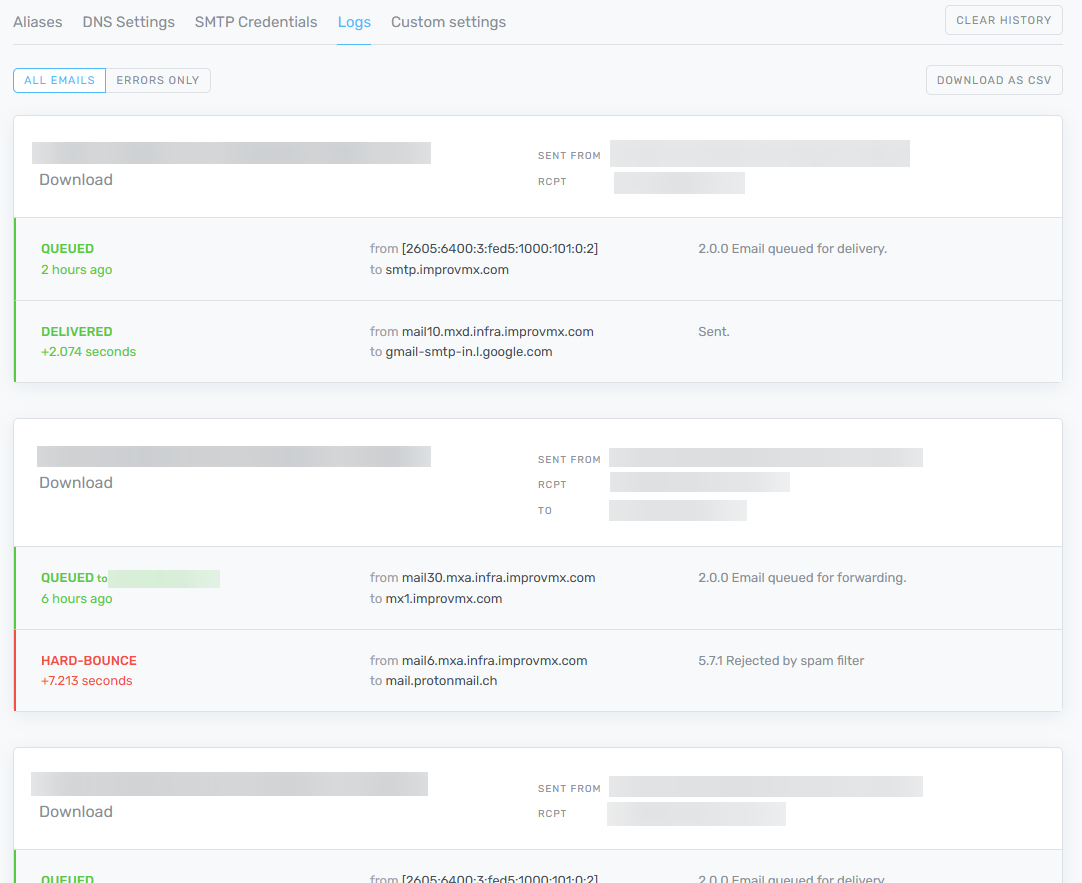
  4. Review activity - Browse through all logged email activity from the past 7 days by scrolling through the page

What's Included in the Logs

The email logs provide visibility into all forwarding activity for your domain, helping you:

  • Diagnose delivery issues - See why specific emails may have bounced or failed
  • Confirm email status - Track emails as they pass through ImprovMX
  • Monitor forwarding activity - Review all incoming emails and their destinations
  • Identify patterns - Spot potential issues with specific senders or recipients

Log Retention

The logging system maintains records for a rolling 7-day window. This allows you to review recent email processing and any related events or errors.

Tip: If you need to investigate an issue, check your logs promptly - entries older than 7 days are automatically removed.

Related Guides

Still have questions? Feel free to reach out to our support team!