Enabling/Disabling Password & 2FA
Password
- Log into your account at app.improvmx.com
- Click Account Info -> Security
- Create your new password and save the changes.
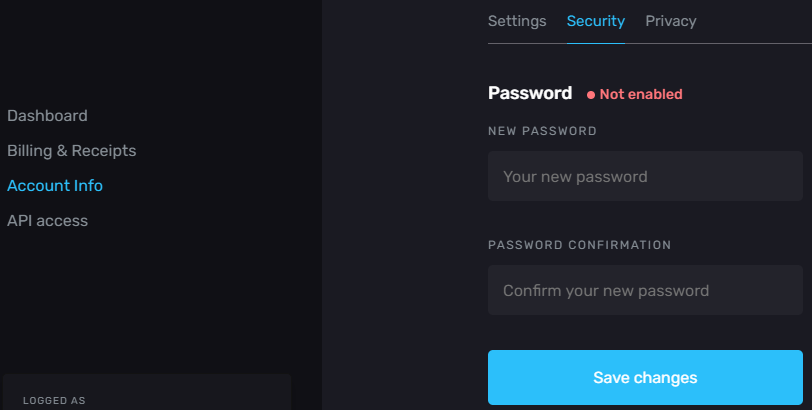
On next login, you will have the option of inputting your password instead of receiving the magic link.
Two-Factor Authentication
- Log into your account at app.improvmx.com
- Click Account Info -> Security -> Enable 2FA
- Follow the on-screen instructions.
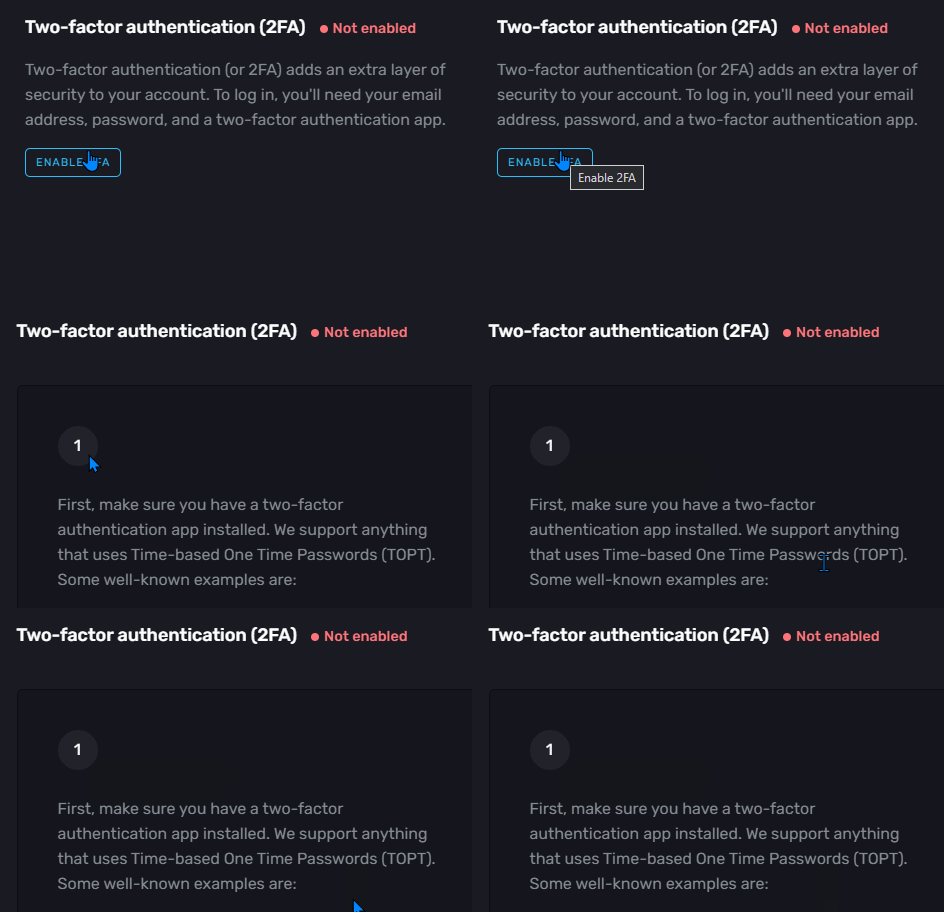
On next login, you will need to supply your two-factor authentication code from your chosen application. Please note that you will be required to supply this code even when accessing the account via the magic link method.
Disable 2FA and/or Your Password
- You can easily change your password under the security tab of your account: Account Info -> Security
- To fully remove your password and/or two-factor authentication, please reach out to our support team via your account email address.