Google Workspace Split Delivery
Setup Split Delivery to use a mixture of Google Workspace email accounts and ImprovMX aliases. This can be useful if you need some full Google Workspace inboxes, but also want to use some advanced ImprovMX forwarding features.
This scheme sets Google Workspace as the primary receiver for your MX records, and they will forward all email for non-matching addresses to ImprovMX.
Step 1: Add the ImprovMX Mail Route
We will be following Google's official guide.
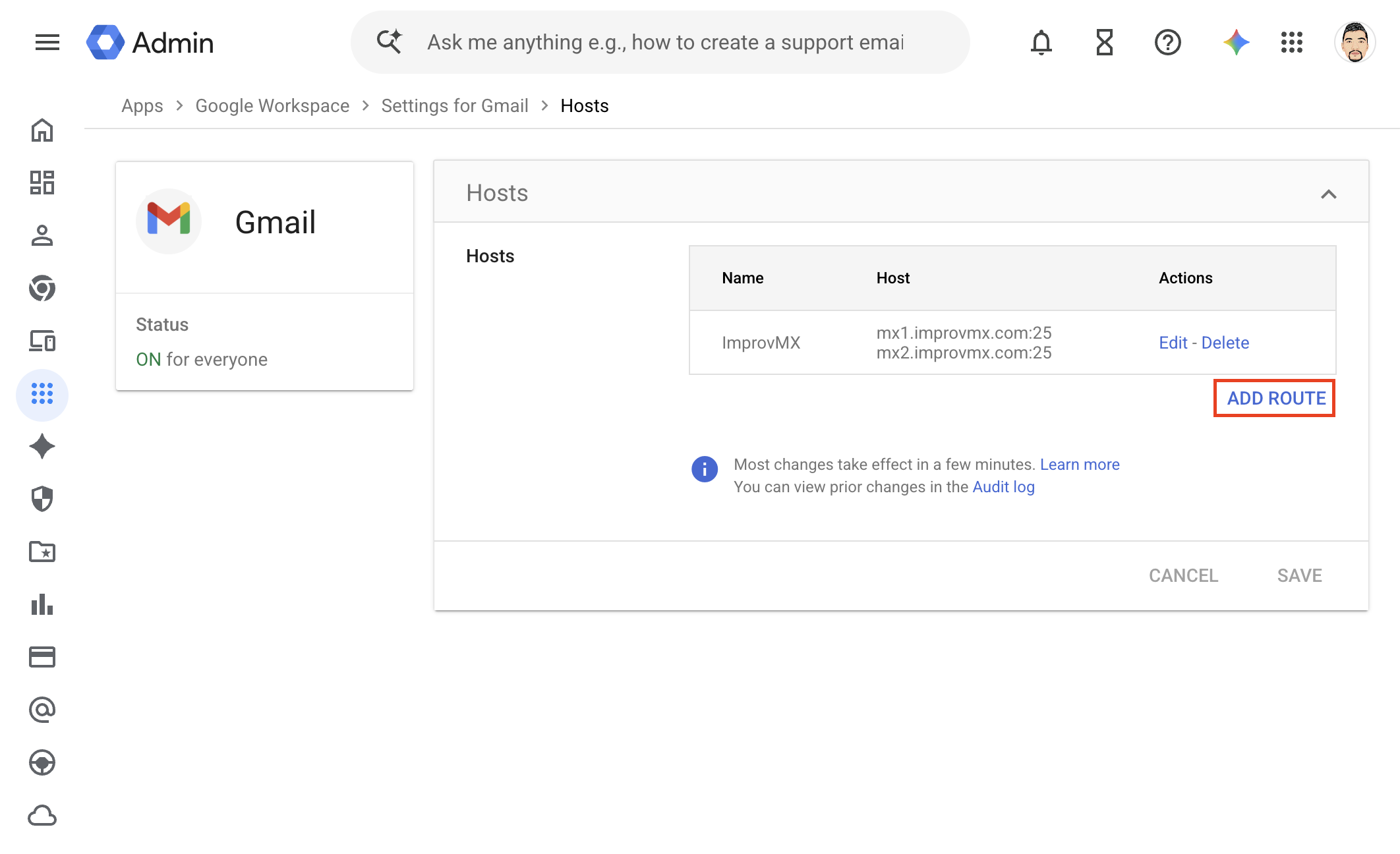
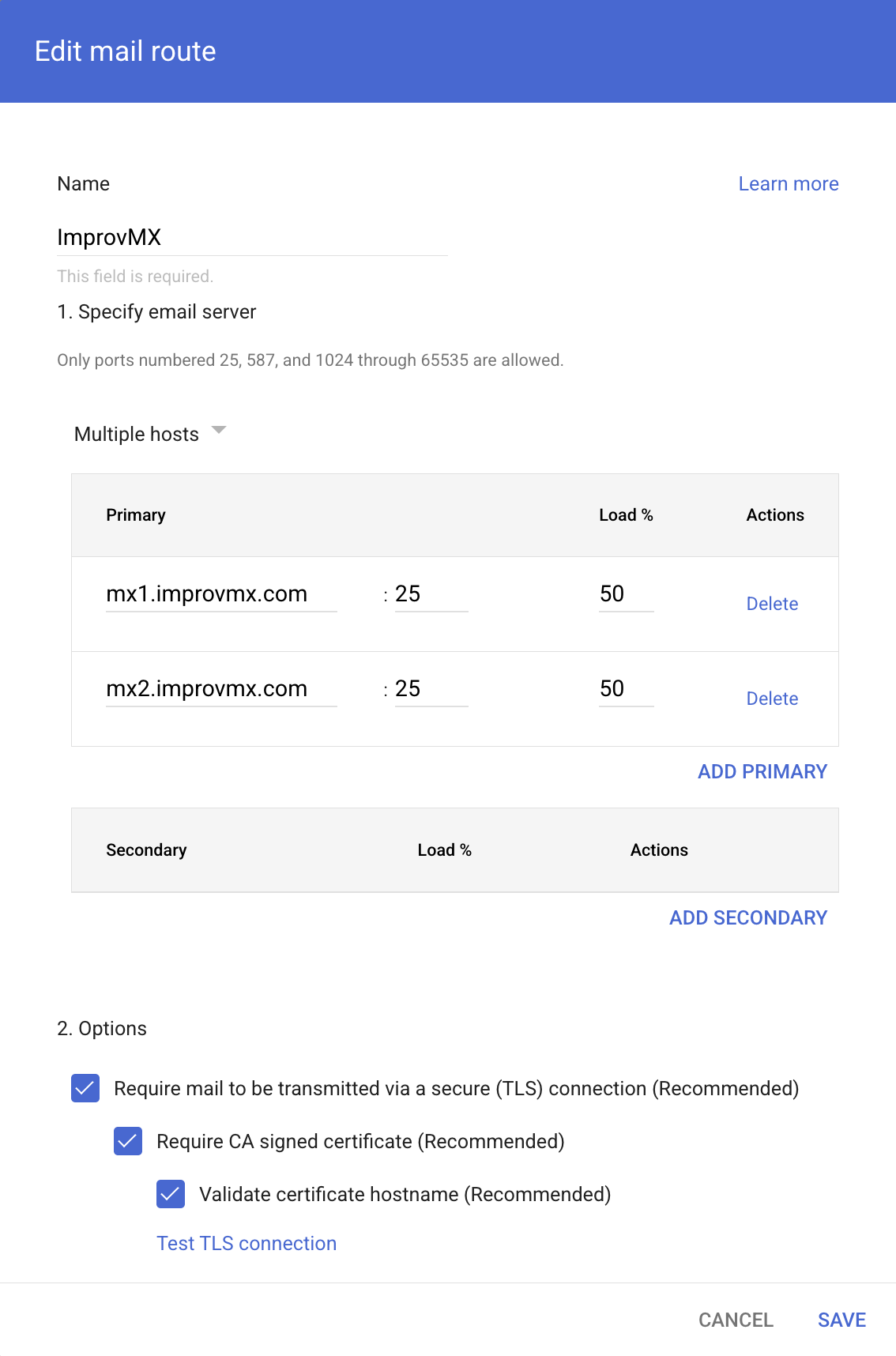
First, add a mail route for your domain, filling in the dialog as shown:
Mail Route Configuration:
- Name: ImprovMX
- Change dropdown to: Multiple Hosts
- Primary Host: mx1.improvmx.com : 25 (Load %: 50)
- Secondary Host: mx2.improvmx.com : 25 (Load %: 50)
- ✅ Require mail to be transmitted via a secure (TLS) connection
- ✅ Require CA-signed certificate
- ✅ Validate certificate hostname
Click Test TLS connection. If successful, click Save.
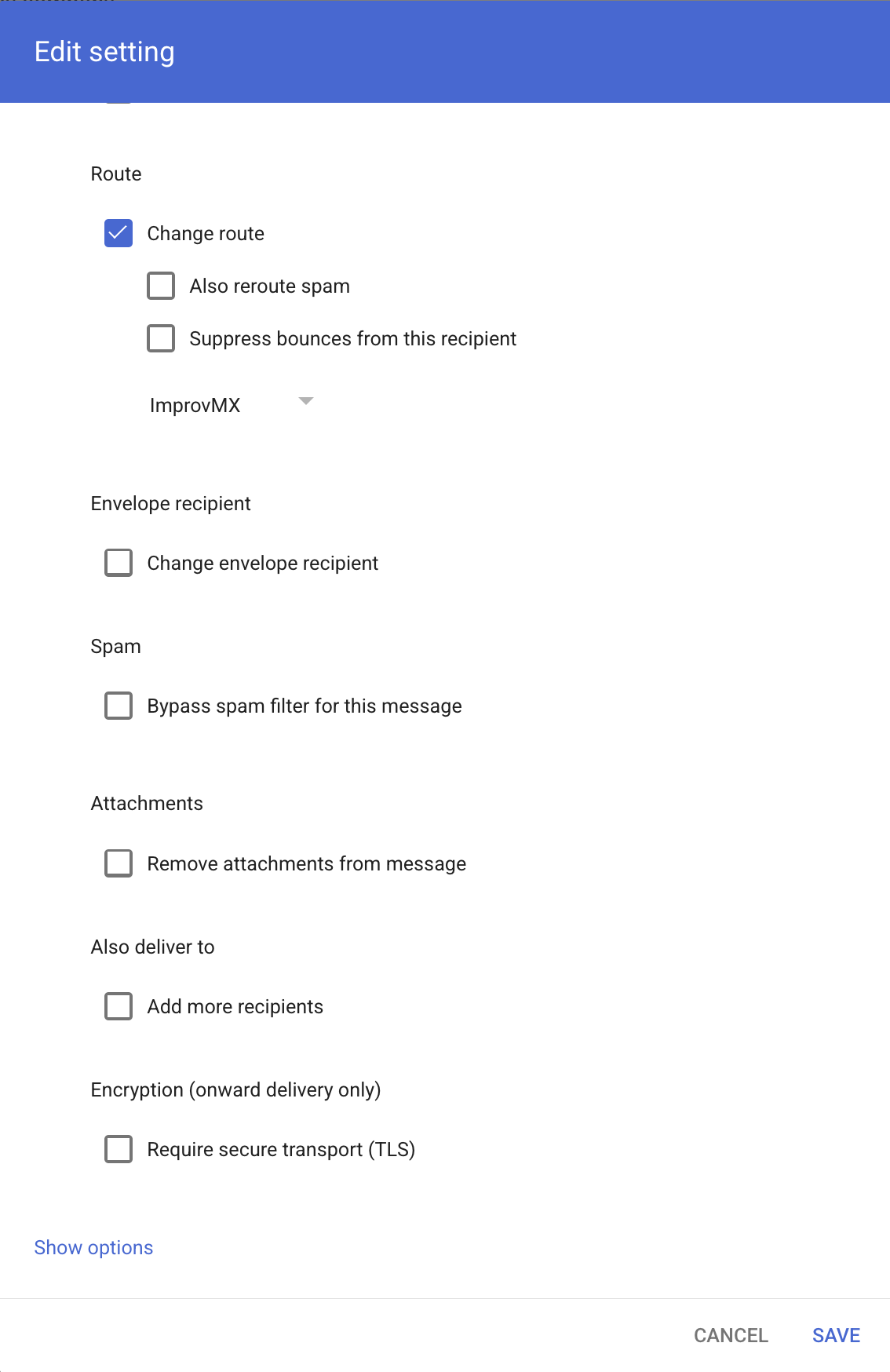
Step 2: Set Up Split Delivery Rule
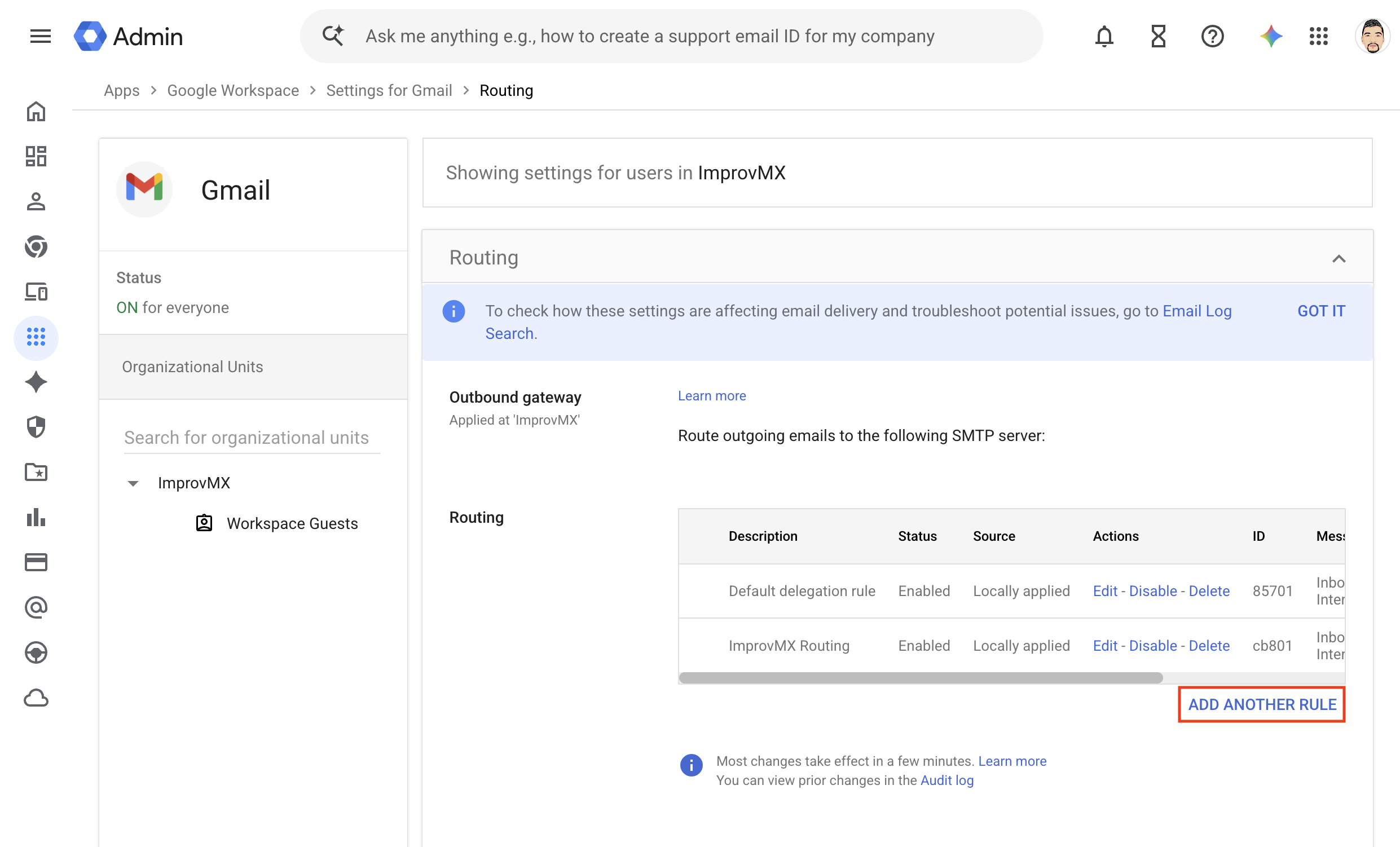
Once the route is created, proceed to set up the routing policy.
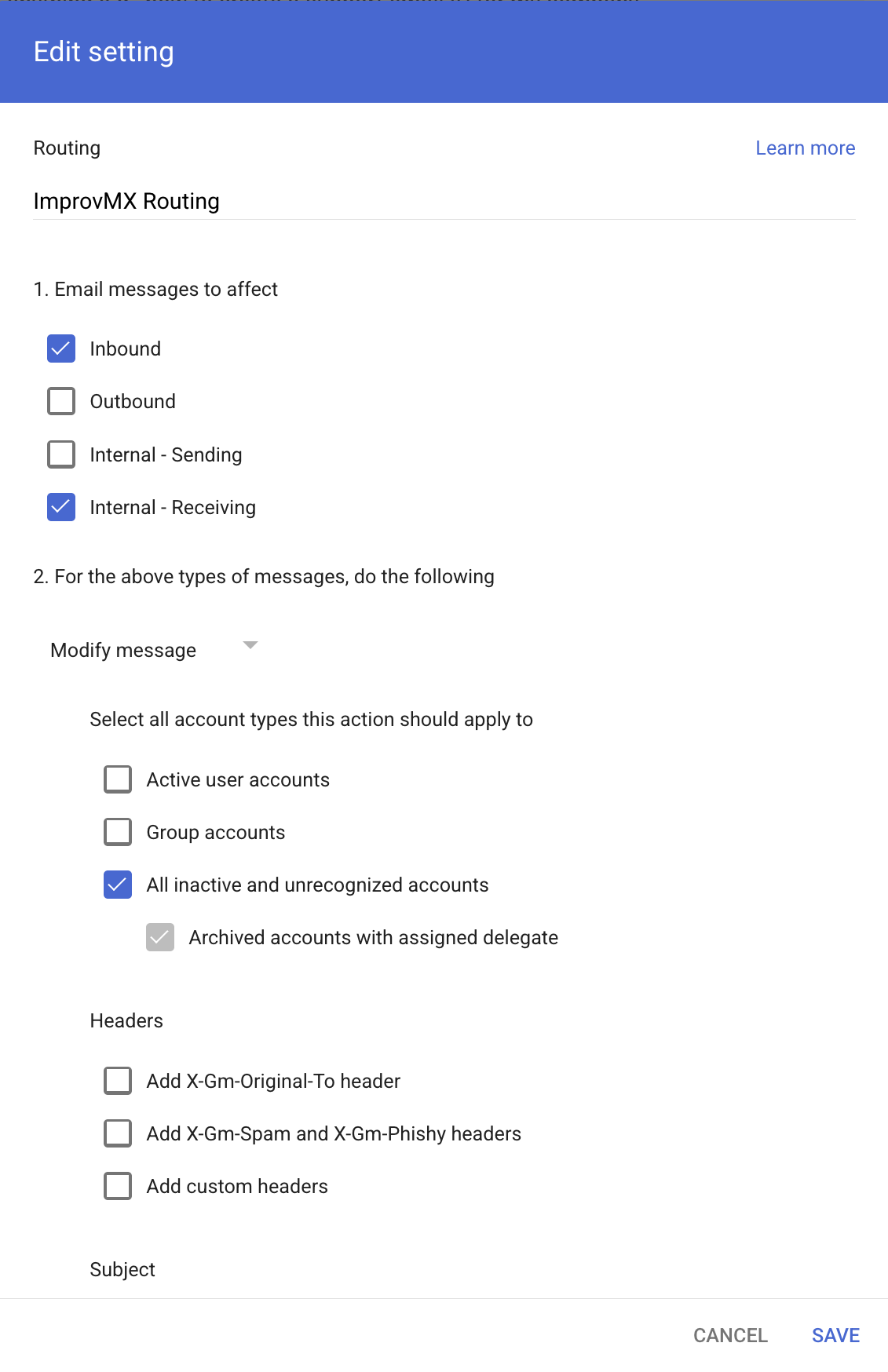
Follow Step 2 of the Google guide to get to the appropriate Routing section, then configure as below:
Routing name: ImprovMX Routing
Email Messages to Affect:
- ✅ Inbound
- ⬜ Outbound
- ⬜ Internal – sending
- ✅ Internal – receiving
Actions to Perform:
- Route > ✅ Change the route → Select ImprovMX
- ⬜ Also reroute spam
- ⬜ Suppress bounces from this recipient
Apply To:
- ✅ Account types: Unrecognised/catch-all
Leave other options (headers, subject, envelope, etc.) unmodified unless required by your setup.
Step 3: Point Your MX Records at Google, Not ImprovMX
Because Google Workspace is the primary receiver in this setup, your domain's MX records should be Google's, not ImprovMX's. Google forwards unrecognised recipients to ImprovMX internally via the route above, so ImprovMX's MX records don't belong in your DNS here.
Set the Google Workspace MX record (official instructions here):
- Host: @ (your root domain)
- Type: MX
- Priority: 1
- Value: smtp.google.com
Since your MX records no longer point at ImprovMX, disable Strict MX Verification in your ImprovMX domain settings — otherwise ImprovMX will keep warning you that your MX records are misconfigured.