Cloudflare DNS Setup For ImprovMX
1. View and copy your MX & SPF records
Where to find your MX & SPF records in the ImprovMX dashboard : Viewing MX & SPF records
You will be required to copy them into Cloudflare.
2. Set MX Records in Cloudflare
In Cloudflare dashboard - select "DNS", "Records" then "Add Record".
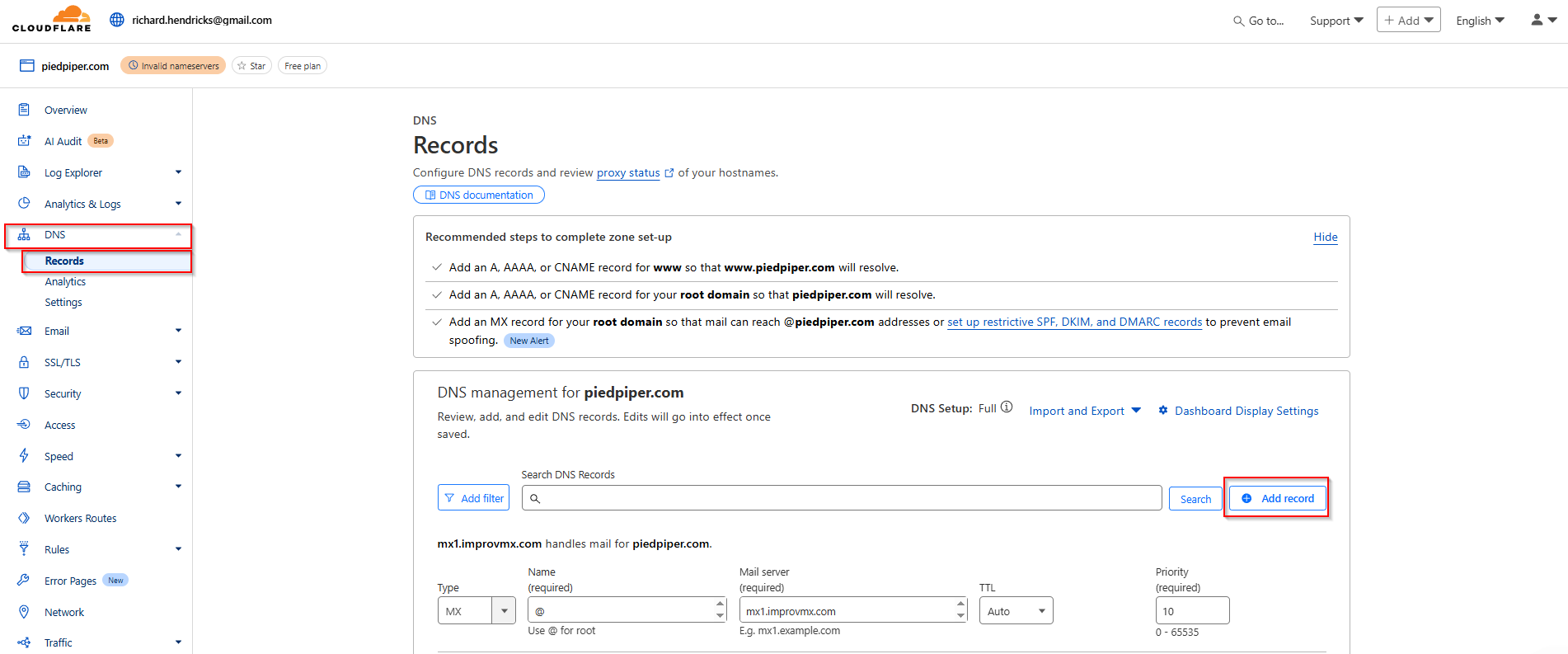
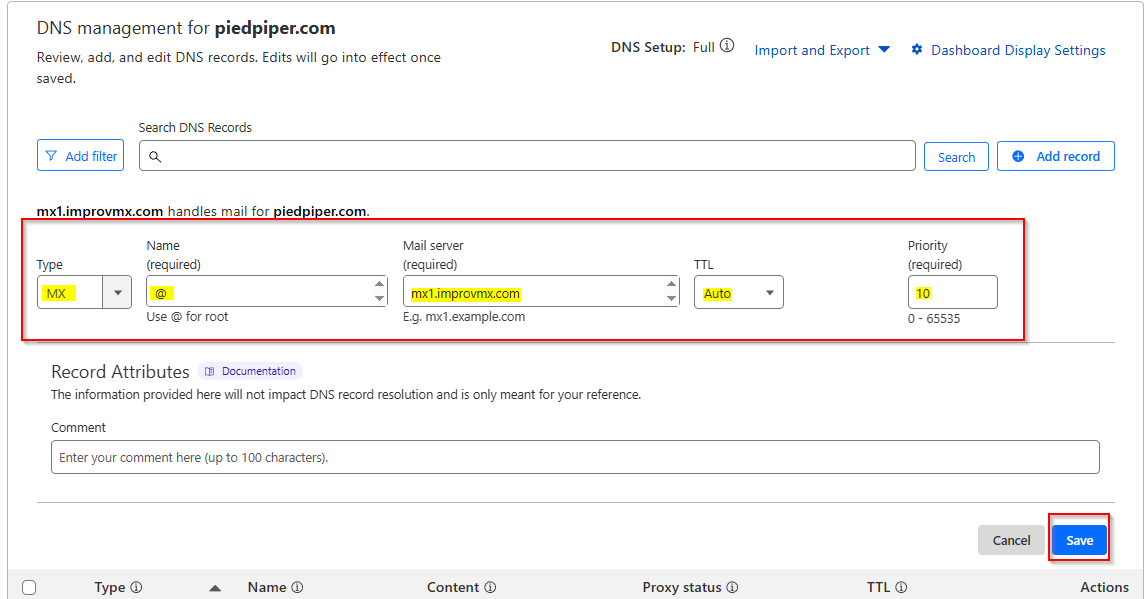
Fill in the record fields as follows:
- Type - MX
- Name - @
- Mail Server -
mx1.improvmx.comcopied in Step 1 - TTL - Auto
- Priority - 10
Click Save
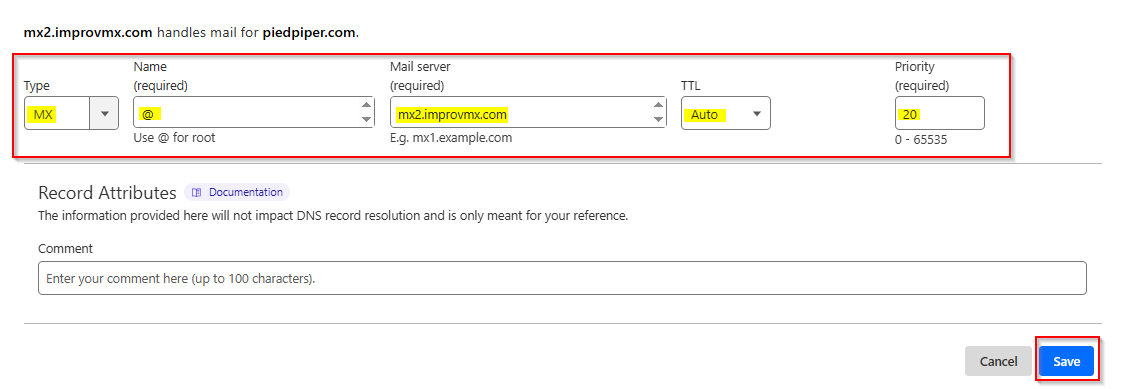
Repeat the above for second MX record, but :
- Mail Server -
mx2.improvmx.com - Priority - 20
3. Add SPF Record
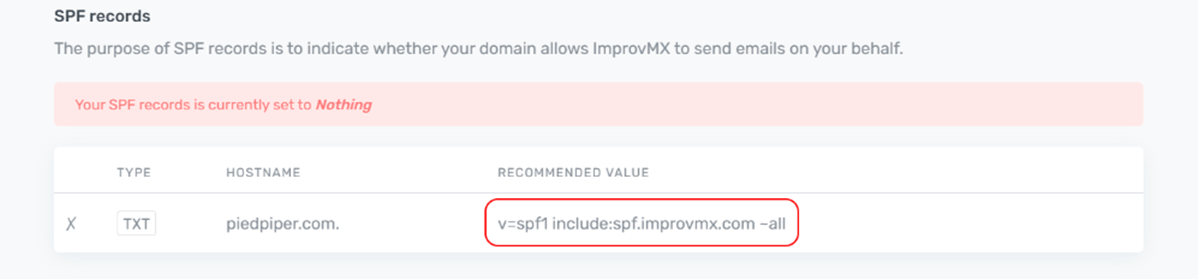
In the ImprovMX dashboard, find the SPF Records section and copy Recommended Value.
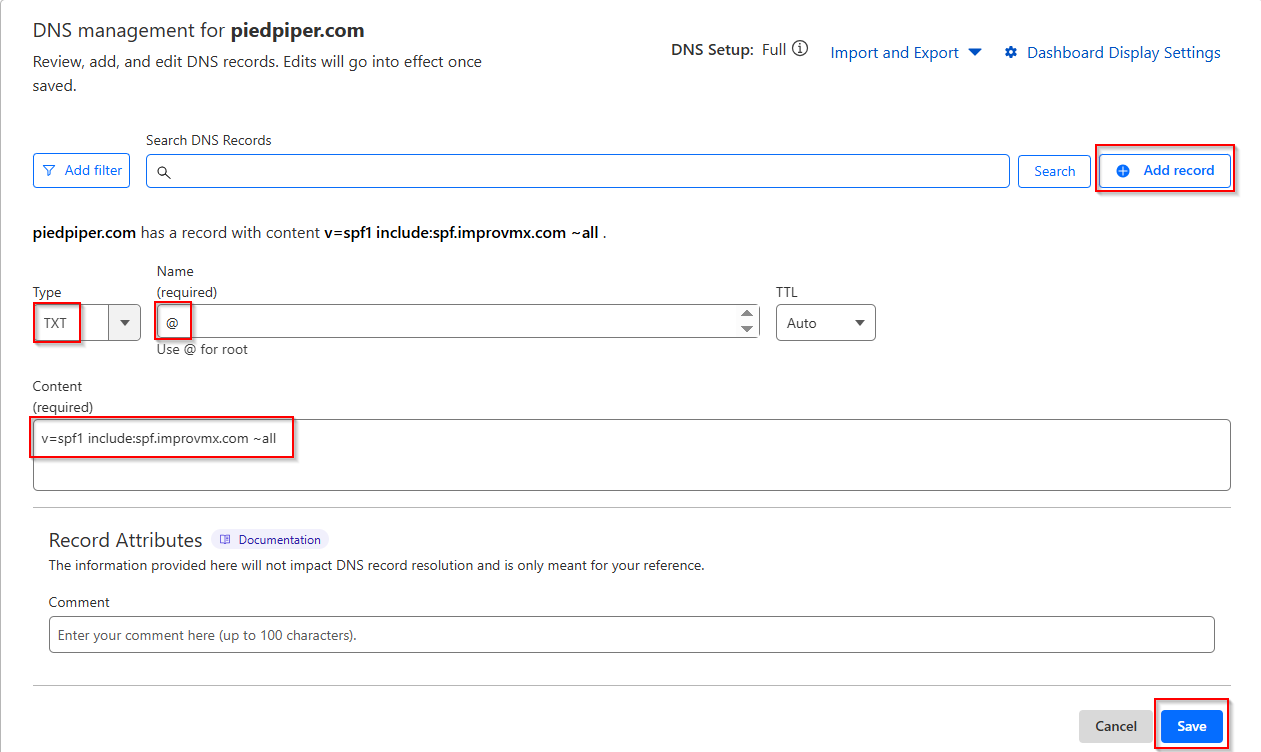
Back in Cloudflare, select "Add record".
Fill in the record fields as follow:
- Type - TXT.
- Name - @
- TTL - Auto.
-
Content -
v=spf1 include:spf.improvmx.com ~all(or your recommended value)
Click Save.
4. Verification
That's it! DNS changes can take up to 24-48 hours to propagate, though usually much faster. We'll notify you once they're detected. You can also click Check Again in the ImprovMX dashboard to see if the changes are already active.
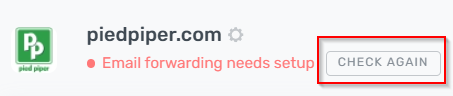
Domain will show "Email forwarding active" when DNS changes have propagated successfully.

Still have questions? Feel free to reach out to our support team!