Mozilla Thunderbird SMTP Setup
Using ImprovMX SMTP in Thunderbird is quite easy. You'll need to configure just two settings: the SMTP (outgoing) server and an identity for use with your alias (alias@yourdomain.com). Follow these steps to get started!
Note: You must be a premium or business member to use ImprovMX SMTP.
Prerequisites:
- Create an SMTP Credential in the ImprovMX Dashboard
- Adding DKIM records in DNS
1. Add the SMTP (outgoing) server to Thunderbird.
Open Thunderbird and head into your account settings: Tools then Account Settings.
On the left hand sidebar, select the Outgoing Server (SMTP) tab and then click the Add button.
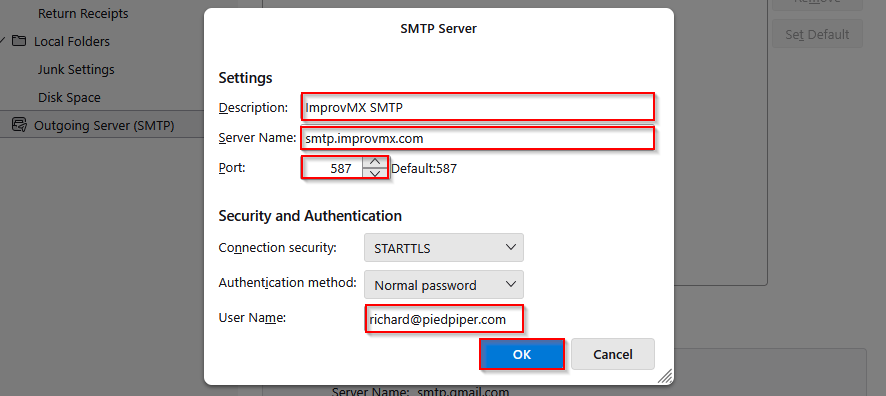
Fill in the SMTP Server settings as follows:
- Choose your own description
- Server name should be
smtp.improvmx.com - Port should be 587 or 465
- Connection Security - STARTTLS if Port 587 or SSL/TLS if Port 465
- Authentication method should be Normal Password
- Username is the alias address created in ImprovMX( see prerequisite 1)
2. Add your ImprovMX alias as an "identity".
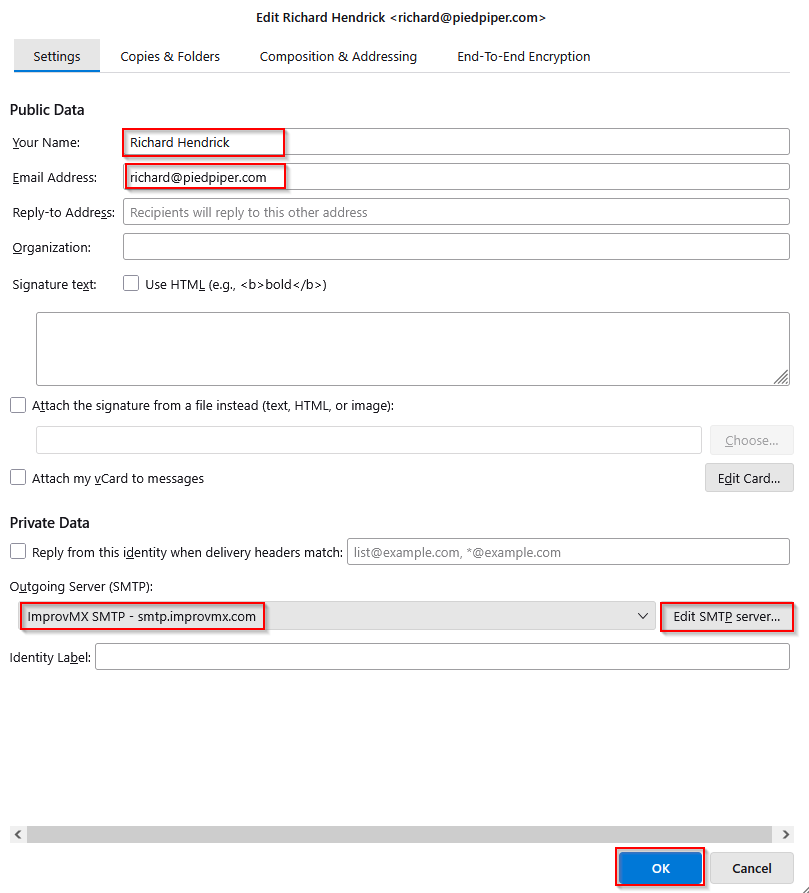
In Account Settings, select the email address you wish to add the identity to, choose Manage Identities( bottom of the page) then click Add.
Fill out the settings as follows:
- Email Address is your alias address created in ImprovMX.
- Outgoing Server (SMTP) is utilizing the SMTP server you made in Step 1.
3. Send an email from your alias.
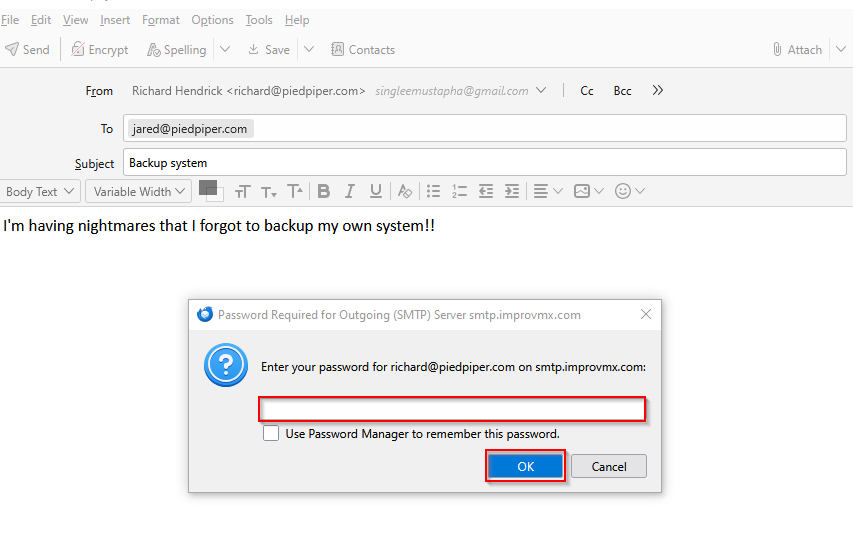
Compose a new email, select your alias address( "From" line), fill in a valid "To" recipient. Fill in a test subject and body, and click send.
Use the password you created in ImprovMX to authenticate your user, and optionally check the box to save the password. Confirm receipt of the test email!
You should now be able to use ImprovMX SMTP to send from your alias within Thunderbird. Repeat these steps to add additional aliases to your Thunderbird client. If you have any questions or issues regarding this process, please feel free to shoot us a message and we'll get back to you promptly.