Downloading emails from logs
Prerequisite:
To download a stored email, set your logging level to "Highest log data".
Download via logs:
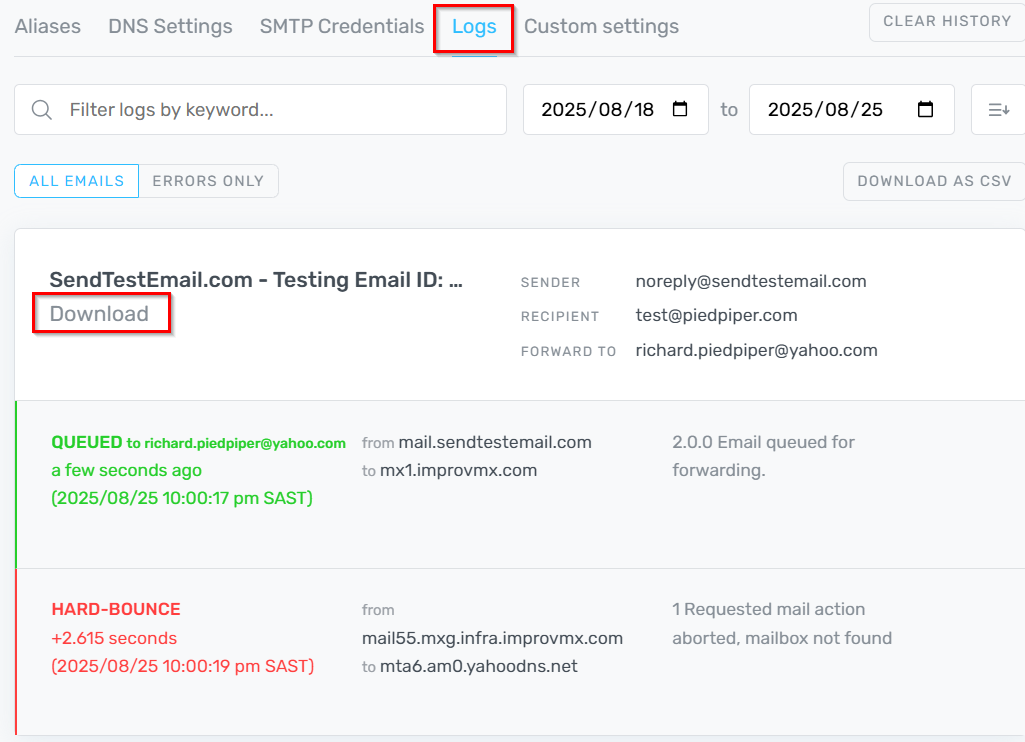
- In the ImprovMX Dashboard, select your Domain → Logs.
-
After enabling the highest log level, each log entry will show a Download button.
- Rejected or failed emails remain available for download for up to 7 days, as per the logging policy.
- Successfully delivered emails can be downloaded briefly - typically within a few seconds of delivery. After that, the Download button disappears.
- Click Download to save the email in .eml format.
Force Download via API (Advanced Users)
If email retention settings permit, advanced users can retrieve emails via the API:
- Use the Logging API to get the email's unique ID.
-
Send a GET request to:
https://api.improvmx.com/v3/emails/UNIQUEID.eml
(Use.emlor.jsonas the file extension.)
If the email is still stored, the response will include the email data.
Still have questions? Feel free to reach out to our support team!