Apple Mail (iOS) with ImprovMX SMTP
If you're forwarding mail to a Gmail inbox and want to send from your custom domain (user@yourdomain.com) using ImprovMX SMTP, iOS Mail doesn't make it easy — but it is possible.
This guide walks you through manually configuring iOS Mail to:
- Use Gmail IMAP to receive forwarded mail
- Use ImprovMX SMTP to send from your custom domain
Prerequisites
Make sure you have the following before starting:
- Your domain is set up in ImprovMX and forwards to Gmail
- Created an SMTP Credential in the ImprovMX Dashboard
- Added DKIM records in DNS
- 2-Step Verification is enabled on your Gmail account
- A Gmail App Password is created for use with IMAP - Generate one here
Step-by-step setup on iOS
Step 1: Add a new mail account
- Open Settings >Apps > Mail > Mail Accounts > Add Account
- Tap Other
- Tap Add Mail Account
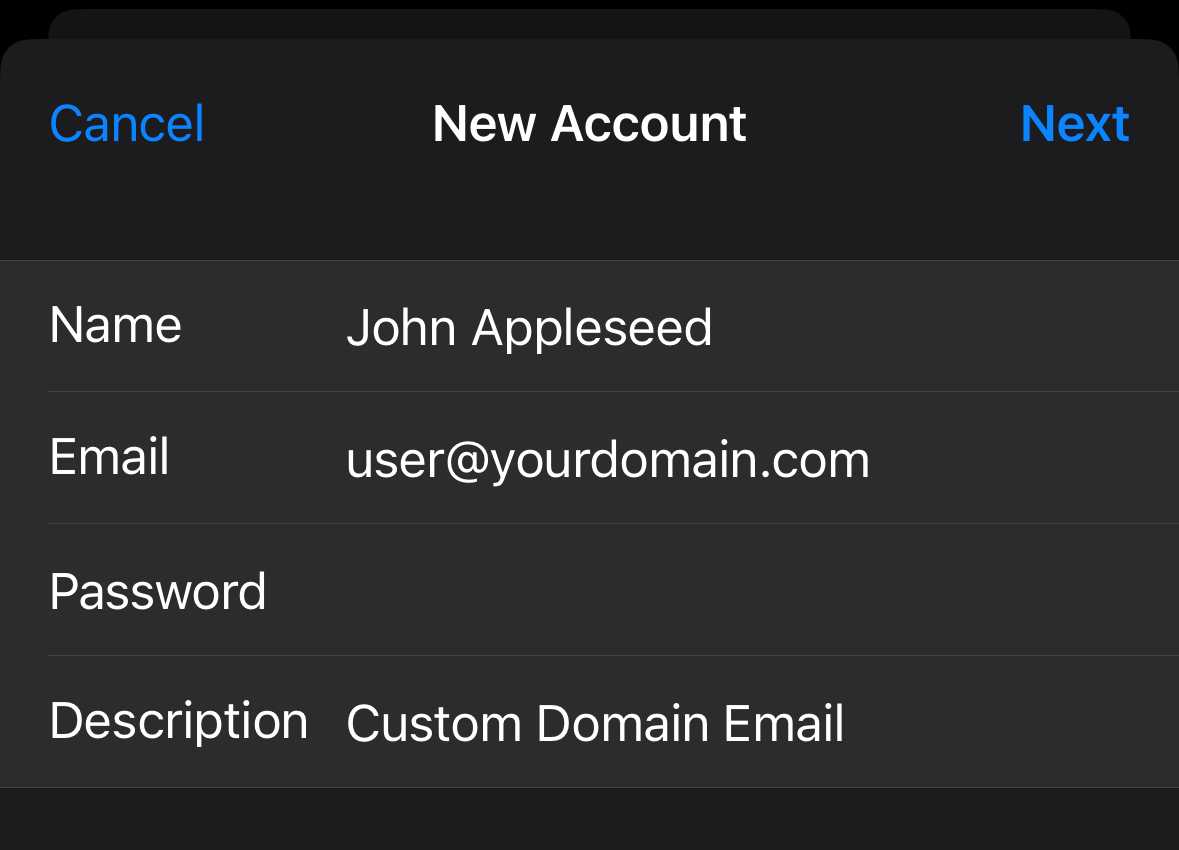
Step 2: Enter account information
- Name: Your display name
- Email: user@yourdomain.com (your ImprovMX alias)
- Password: Your Gmail App Password
- Description: e.g. "Custom Domain Email"
Tap Next. iOS will now prompt for incoming and outgoing server settings.
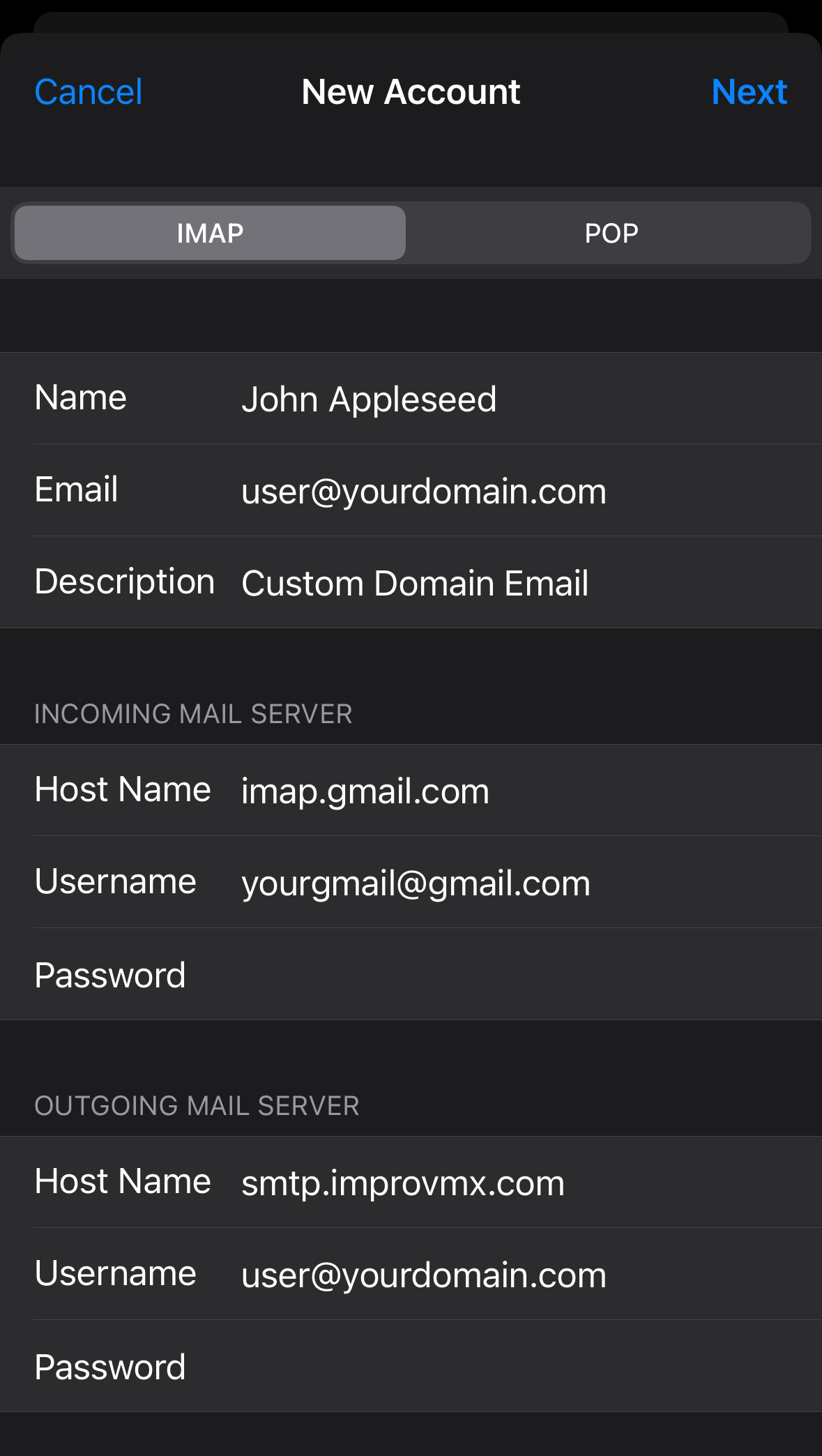
Step 3: Enter incoming & outgoing mail server (Gmail IMAP / ImprovMX SMTP)
- Incoming Mail Server
- Host Name: imap.gmail.com
- Username: Your full Gmail address (e.g. you@gmail.com)
- Password: Your Gmail App Password
- Outgoing Mail Server
- Host Name: smtp.improvmx.com
- Username: user@yourdomain.com
- Password: Your ImprovMX SMTP password
Tap Next and wait while the account verifies. Then tap Save.
Step 4: Final adjustments
- After saving, you'll be asked what to sync. Turn Notes off unless needed.
- Tap Save again.
Step 5: Send a test message
- Open the Mail app
- Tap the compose icon
- Ensure the From address is set to user@yourdomain.com
- Send an email to any destination and check it arrives correctly
Setup Google Account Syncing
This will help you send emails while syncing Google Contacts and Calendar.
There are two ways to configure your accounts. Here's what each does:
Option A: Sync Contacts & Calendar (Recommended)
- Go to Settings > Mail > Accounts > Add Account > Google
- Sign in with your Google account
- Disable Mail, Enable Contacts and Calendar
- This keeps your Google services synced without interfering with your custom email setup
Option B: Isolate Mail Only
- Go to Settings > Mail > Accounts > Add Account > Other
- Use your ImprovMX alias and SMTP credentials
- Contacts and Calendar won't sync this way
- Use this only if you want to keep Mail separate
Use Option A for syncing Contacts and Calendar. Use Option B for sending/receiving mail via ImprovMX.
You're done!
You're now able to send mail from your custom domain on iOS Mail using ImprovMX SMTP — all while receiving replies through your Gmail inbox.