How to setup a Gmail profile image for your email alias.
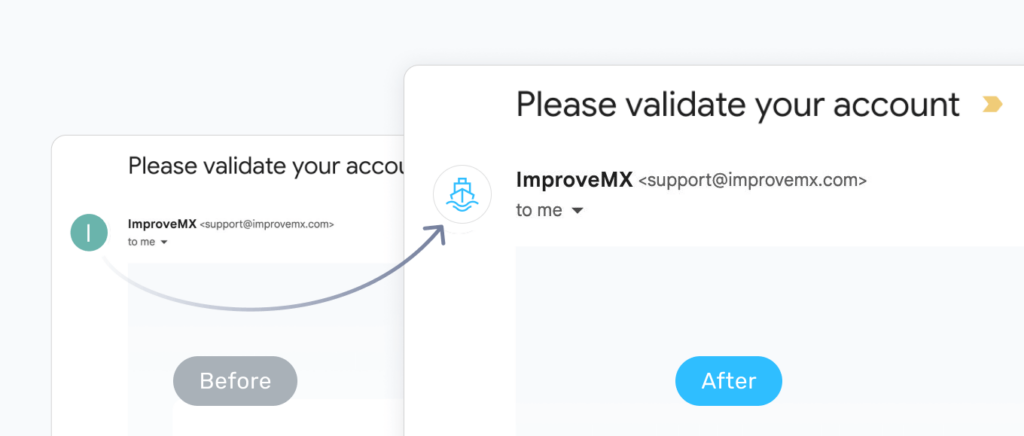
Ever notice the logo next to some senders in Gmail? Want that for your emails too? Good news: it's free, takes just 5 minutes, and works perfectly with ImprovMX aliases.
The secret sauce? A quick Google Account trick!
Why show your logo?
- Instant recognition: Customers immediately see it's you.
- Increased trust: It helps you stand out from the spammers.
- Professional look: It's like adding a little polish to every email.
Let's get it done (It's free!)
Step 1: Create a Google Account for Your Alias
A. How to create a Google Account
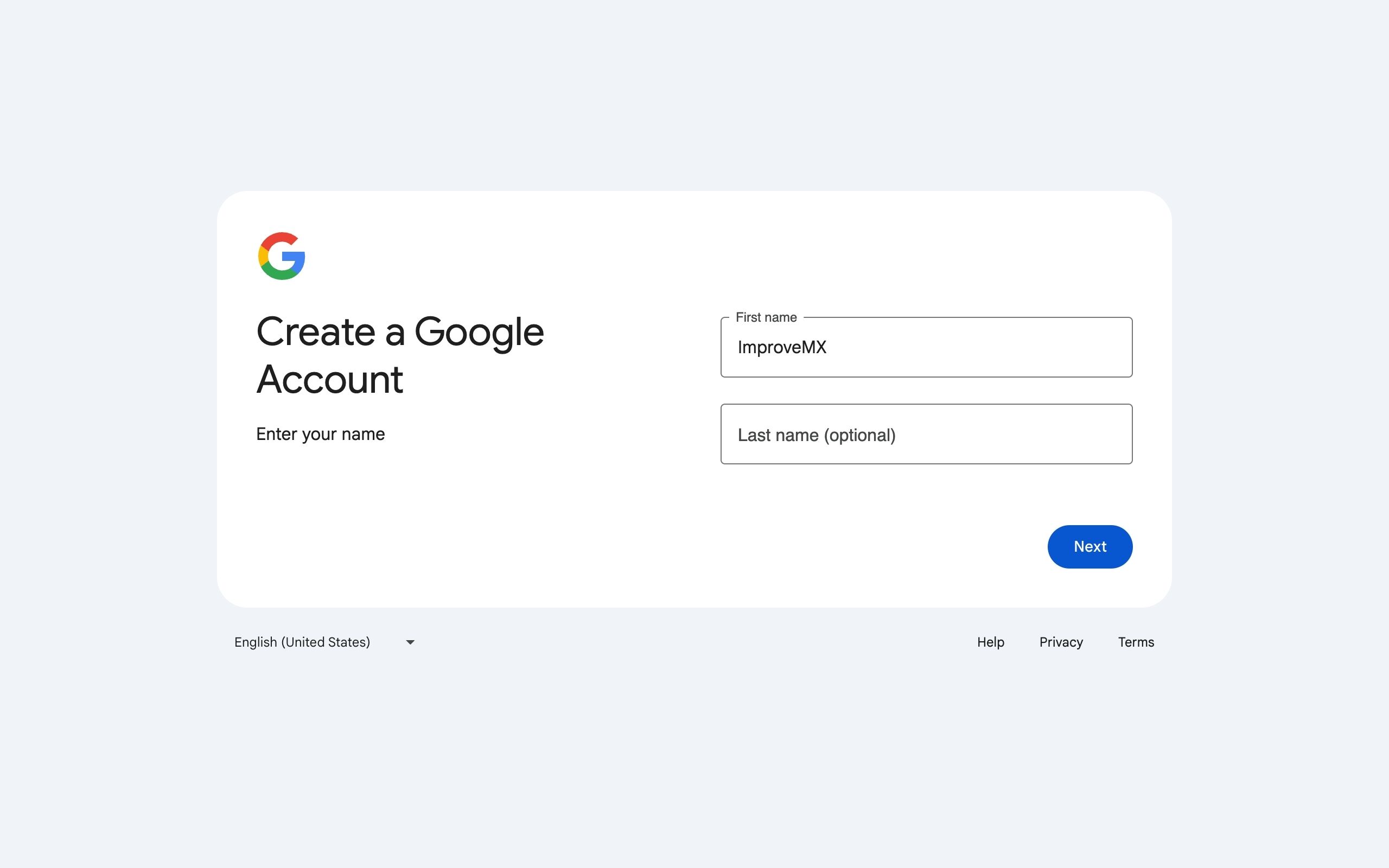
Go to https://accounts.google.com/signup and use your company name as your First Name and leave Last Name blank.
Fill in any birthdate.
B. Use your existing email
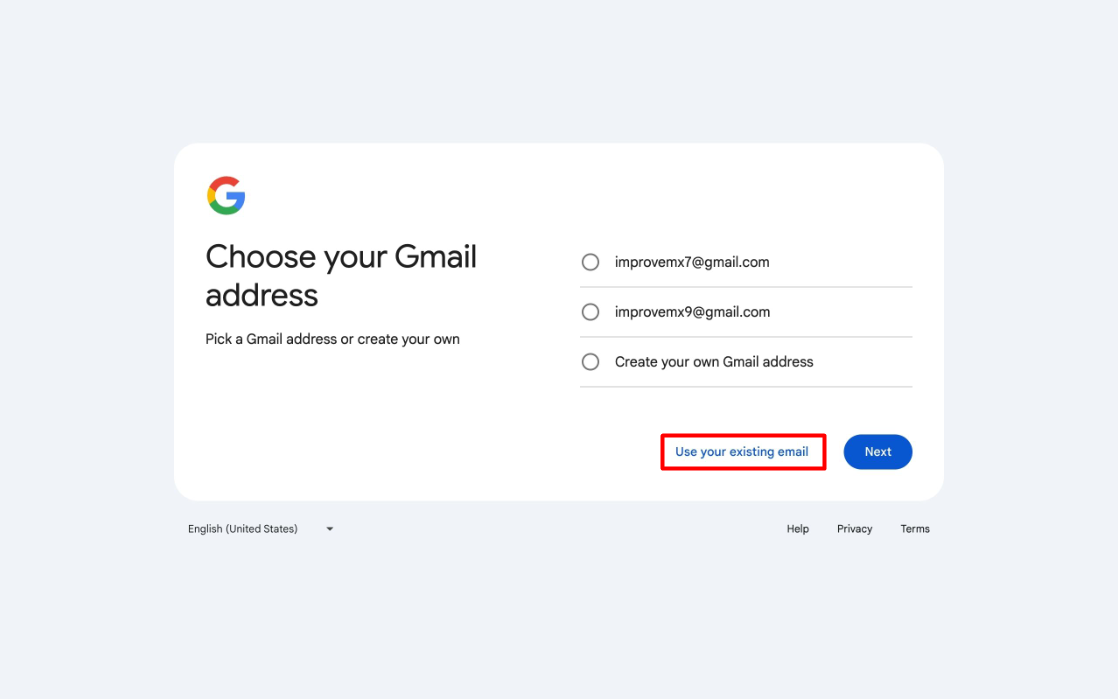
Instead of letting Google pick a random Gmail address alias for you, click Use your existing email at the bottom.
C. Verify email ownership
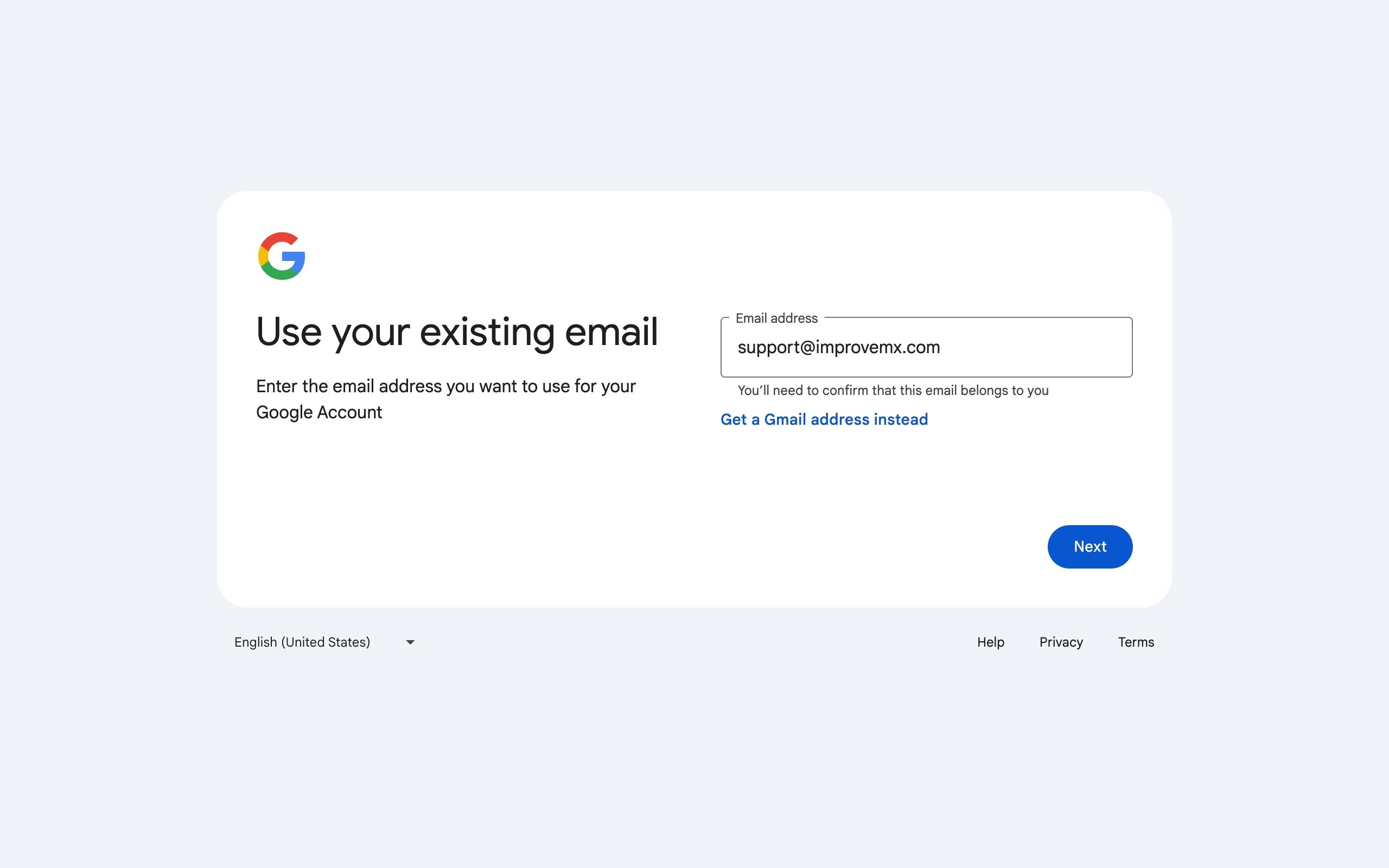
Enter the email alias where you want the logo to appear (e.g. support@piedpiper.com).
You'll get an email from Google with a code to verify your ownership of the email alias.
Don't have the email alias active yet?
Create the email alias with ImprovMX and forward it to any email address for free!
Step 2: Add a Profile Image to Your Alias
A. Click on the Avatar
In the Google Account dashboard, click the profile image circle.
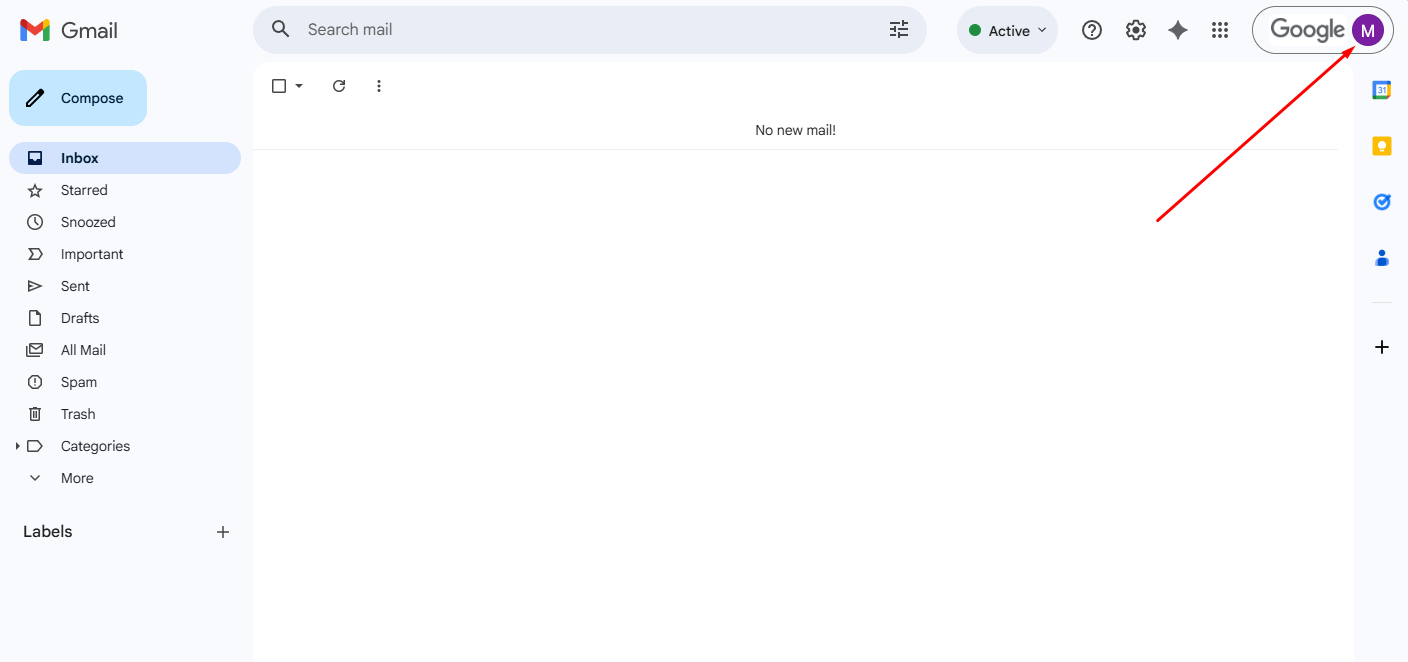
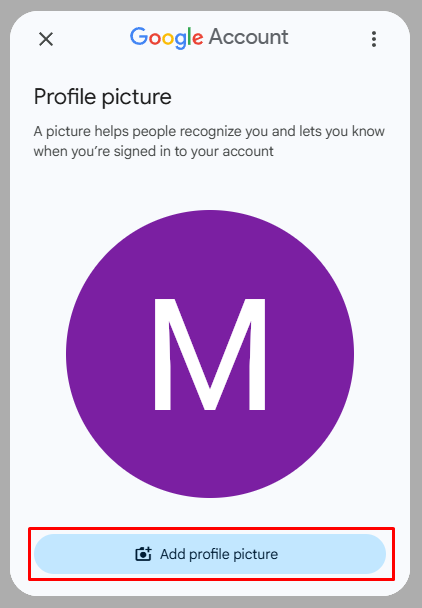
B. Click on the Avatar
Choose Add profile picture and upload your logo.
C. Make It Visible
Ensure the avatar is set to Visible to anyone.
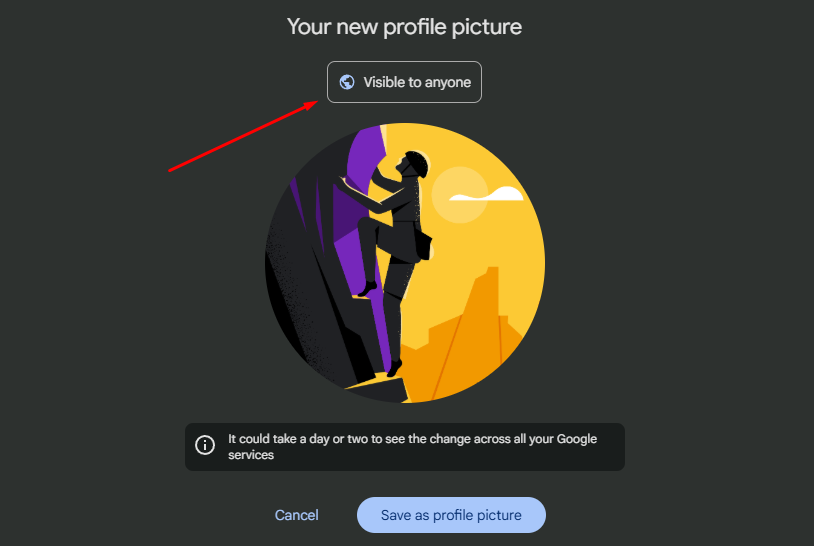
it may take up to 24 hours for the image to appear in Gmail.