Zoho Mail Split Delivery
Prerequisites
- Full admin access to your Zoho Mail Admin Console.
- Your domain's MX records should prioritize Zoho Mail over the secondary server (e.g., ImprovMX).
- Disable any strict MX verification alerts if applicable.
1) Configure Email Routing in Zoho Mail
- Log in to the Zoho Mail Admin Console.
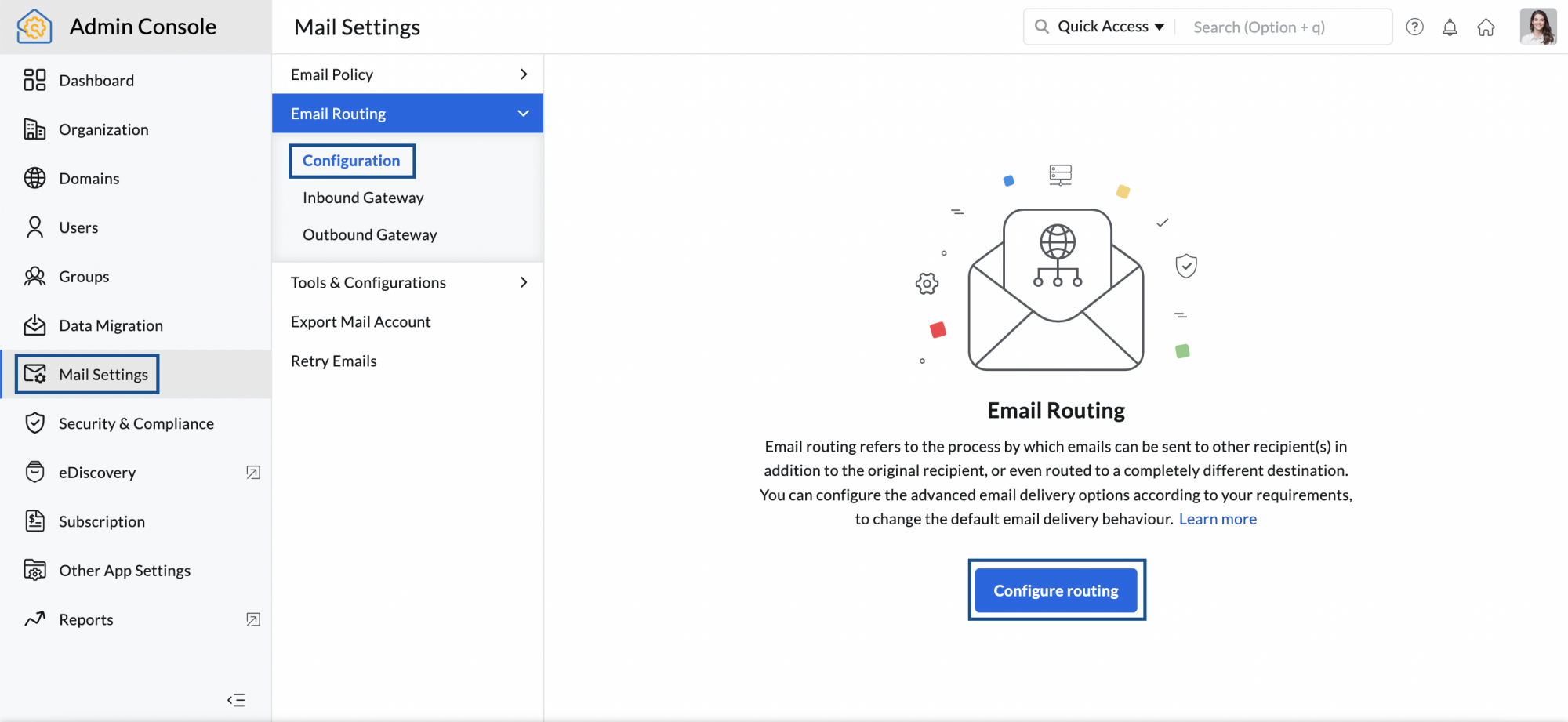
- Navigate to Mail Settings → Email Routing.
- Click Configure routing or Add.
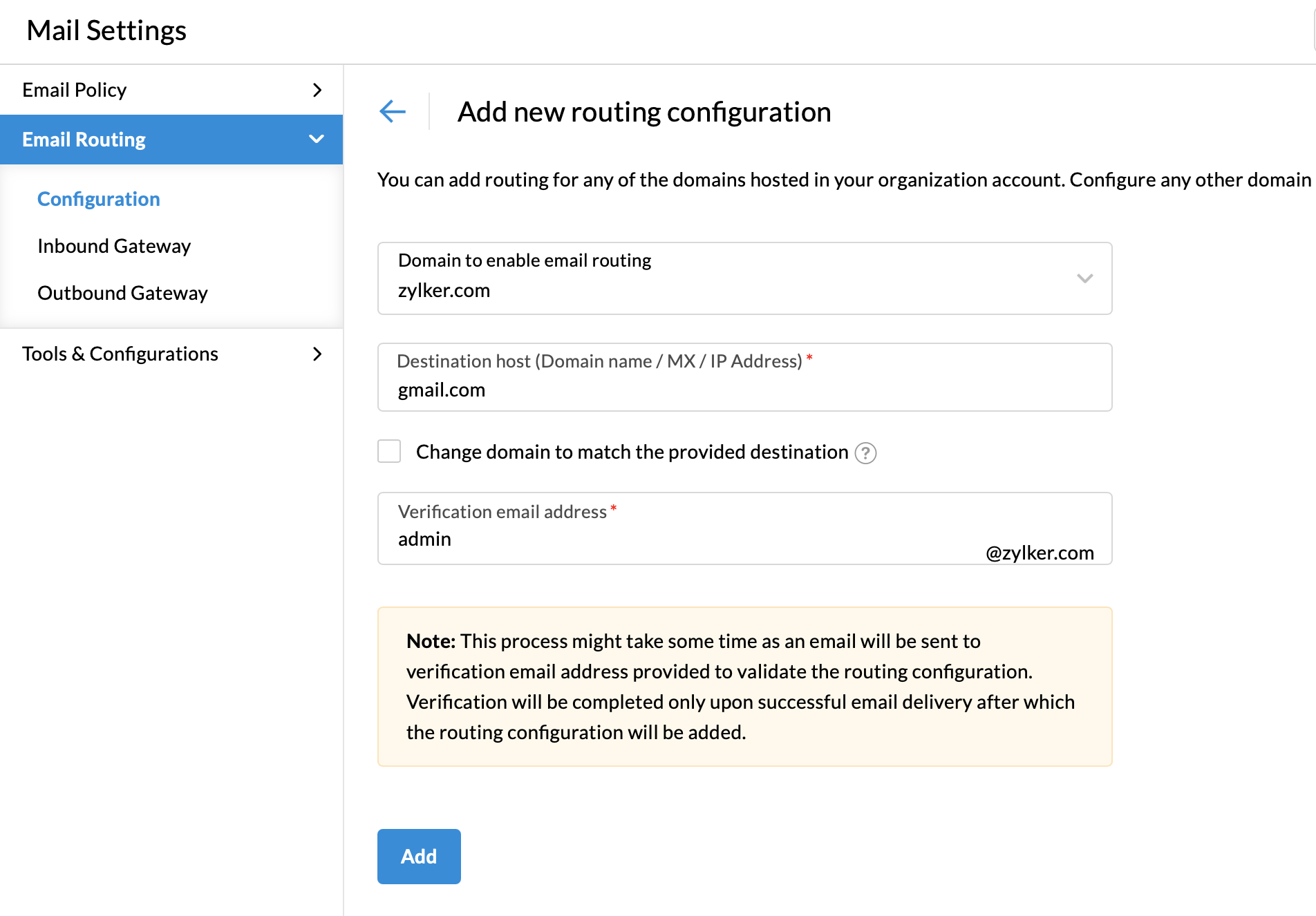
- Select your domain from the dropdown.
-
Enter the following details:
- Destination Host:
mx1.improvmx.comandmx2.improvmx.com - Verification Email Address: Use an alias that exists in ImprovMX but not in Zoho.
- Destination Host:
- Enable TLS and certificate validation if available.
- Click Add and wait for the verification email to confirm routing setup.
2) Set Routing Type to Split Delivery
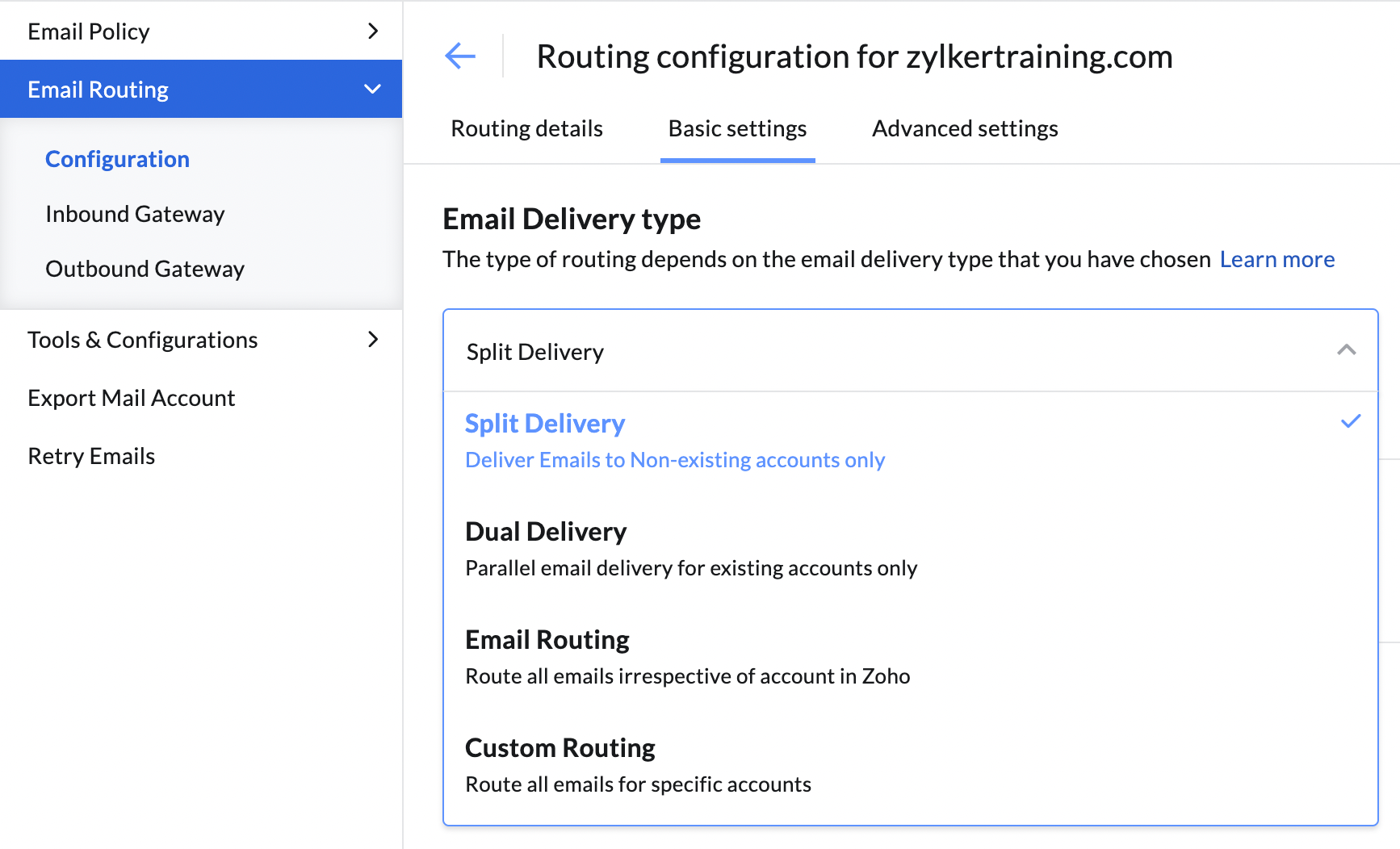
- In the routing configuration, go to Basic Settings.
-
Under Type of Email Distribution, select Split Delivery.
- This ensures Zoho delivers emails to existing accounts.
- Emails to unknown accounts are forwarded to the destination host (e.g., ImprovMX).
- Optionally, check Do not retain Zoho Mail copy if you don't want Zoho to store forwarded emails.
3) Test the Configuration
-
Send test emails to:
- A known Zoho Mail account → should be delivered to Zoho.
- An unknown account (configured in ImprovMX) → should be forwarded correctly.
- Monitor for delivery success or bounce messages.
Final Notes
- You can customize routing further using criteria-based routing, group member routing, or recipient domain/username changes if needed.
- Make sure your aliases are correctly set up in ImprovMX to receive forwarded mail.