Microsoft 365 Split Delivery
Overview
Split delivery enables a single domain to utilize multiple email service providers. In this configuration:
- Microsoft 365 (Exchange Online) acts as the primary email service, processing emails for recognized addresses.
- ImprovMX handles emails for addresses not recognized by Microsoft 365, typically forwarding them to external destinations.
All emails will first arrive at Microsoft 365 via the domain's MX records. Microsoft 365 will then forward emails for unknown recipients to ImprovMX using a connector.
Before you begin: This configuration is best suited to more technical users, and you'll need full admin access to the Microsoft 365 account.
Ensure your domain's MX records are pointing to Microsoft with a higher priority than ImprovMX. It's recommended to disable the Strict MX Verification feature so you won't be alerted about the low priority MX records.
Step-by-Step Configuration
Step 1: Configure the Domain as Internal Relay in Microsoft 365
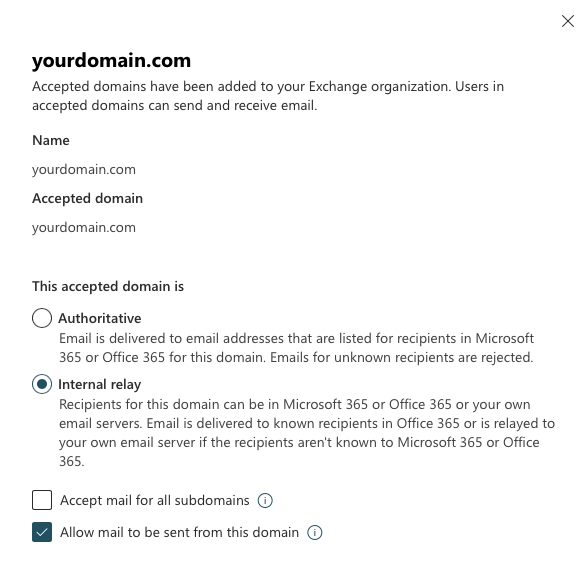
- Action: Set your domain to "Internal Relay" in Microsoft 365 to enable forwarding of emails for unknown recipients.
- How:
- Log in to the Microsoft 365 admin center.
- Go to Exchange Admin Center > Mail Flow > Accepted Domains.
- Select your domain and change its type to Internal Relay.
- Click Save.
- Why: "This allows Microsoft 365 to relay emails for unknown recipients to another server (ImprovMX) instead of rejecting them."
Step 2: Create a Connector to Forward Emails to ImprovMX
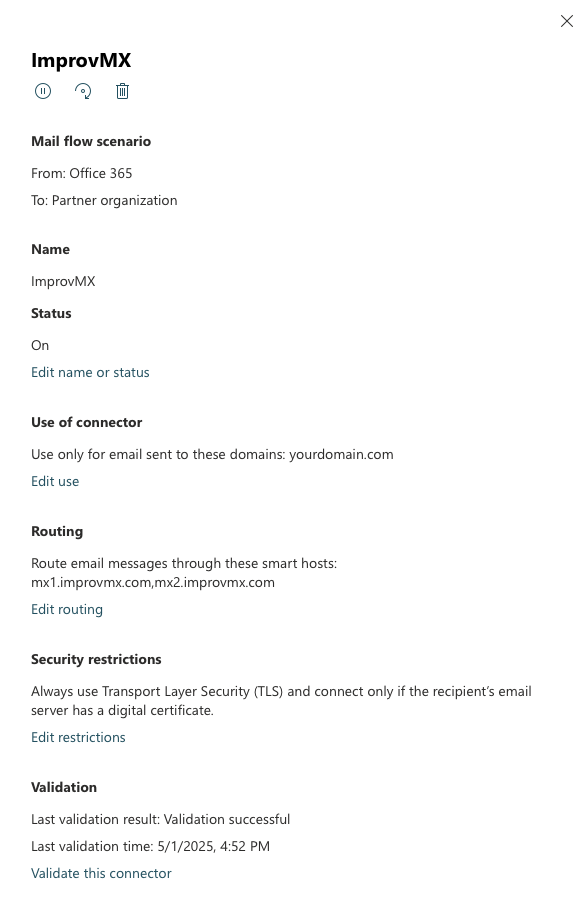
- Action: Configure a connector in Microsoft 365 to route emails for unknown recipients to ImprovMX.
- How:
- In the Exchange Admin Center, navigate to Mail Flow > Connectors.
- Click + to add a new connector.
- Set From: Office 365 and To: Partner organization.
- Name the connector (e.g., "To ImprovMX").
- Under When to use this connector, choose Only when email messages are sent to these domains and add your domain (e.g., yourdomain.com).
-
For How to route email, select Route email through these smart hosts and enter ImprovMX's mail servers:
mx1.improvmx.com
mx2.improvmx.com - Enable Always use Transport Layer Security (TLS) and select Any digital certificate.
- To validate your configuration, enter an email address that exists as an alias in ImprovMX (but not on Microsoft 365) for your domain. If you haven't done this yet, you can still enter an email, but the validation will fail. You'll still be able to proceed.
- Save and ensure the connector is active.
- Why: "This connector instructs Microsoft 365 to forward emails for unknown recipients to ImprovMX's mail server."
Step 3: Test the Configuration
- Action: Test email delivery to both Microsoft 365 and ImprovMX-managed addresses. Note: Carry out the test from a completely separate email address and domain, if possible.
- How:
- Send emails to addresses in Microsoft 365 and verify delivery.
- Send emails to addresses managed by ImprovMX and confirm they are forwarded correctly.
- Monitor for any delivery failures or bounces.
- Why: "Testing validates that split delivery works as intended. Make sure you set up your aliases as needed!"