Gmail Filters to Prevent Spam
How to configure Gmail filters to prevent ImprovMX emails from being marked as spam.
Gmail's spam detection can be overly aggressive with newly configured email domains, causing legitimate ImprovMX-forwarded messages to land in spam folders. This guide shows you how to create a filter that prevents this issue.
Why This Happens
When you set up a new domain with ImprovMX, Gmail may initially treat forwarded emails with suspicion. This is because:
- Your domain doesn't have an established sending reputation yet
- Gmail's algorithms are cautious about newly seen email sources
- Forwarded emails can sometimes trigger spam heuristics
Solution: Create a Gmail Filter
Follow these steps to create a filter that prevents your ImprovMX emails from being marked as spam:
Step 1: Access Search Options
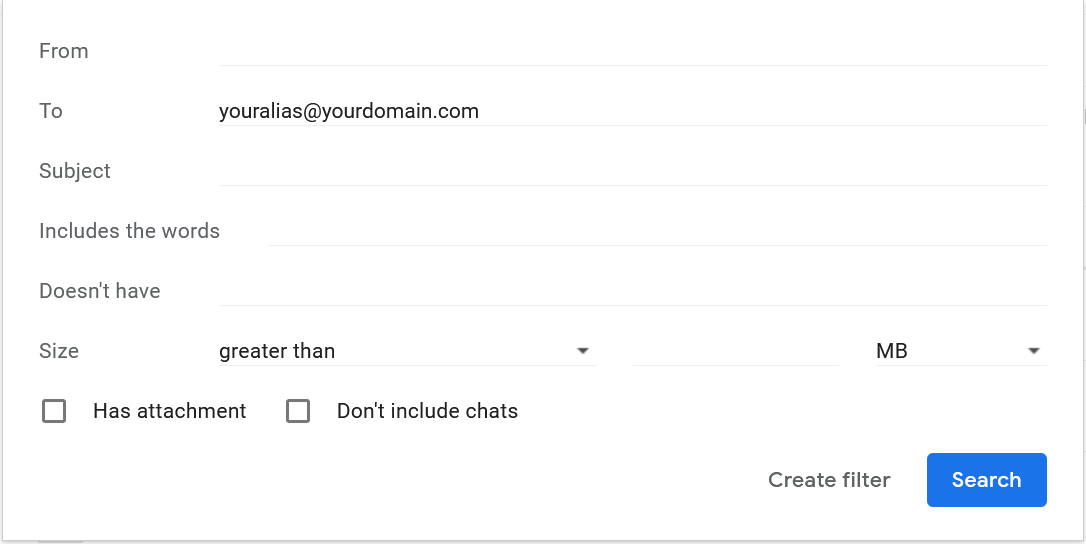
Open Gmail's web interface and locate the search options icon on the right side of the search bar (the small arrow/triangle icon).
Step 2: Create the Filter
In the dropdown menu that appears:
- Enter your ImprovMX alias (e.g.,
contact@yourdomain.com) in the To: field - Click Create filter at the bottom of the dropdown
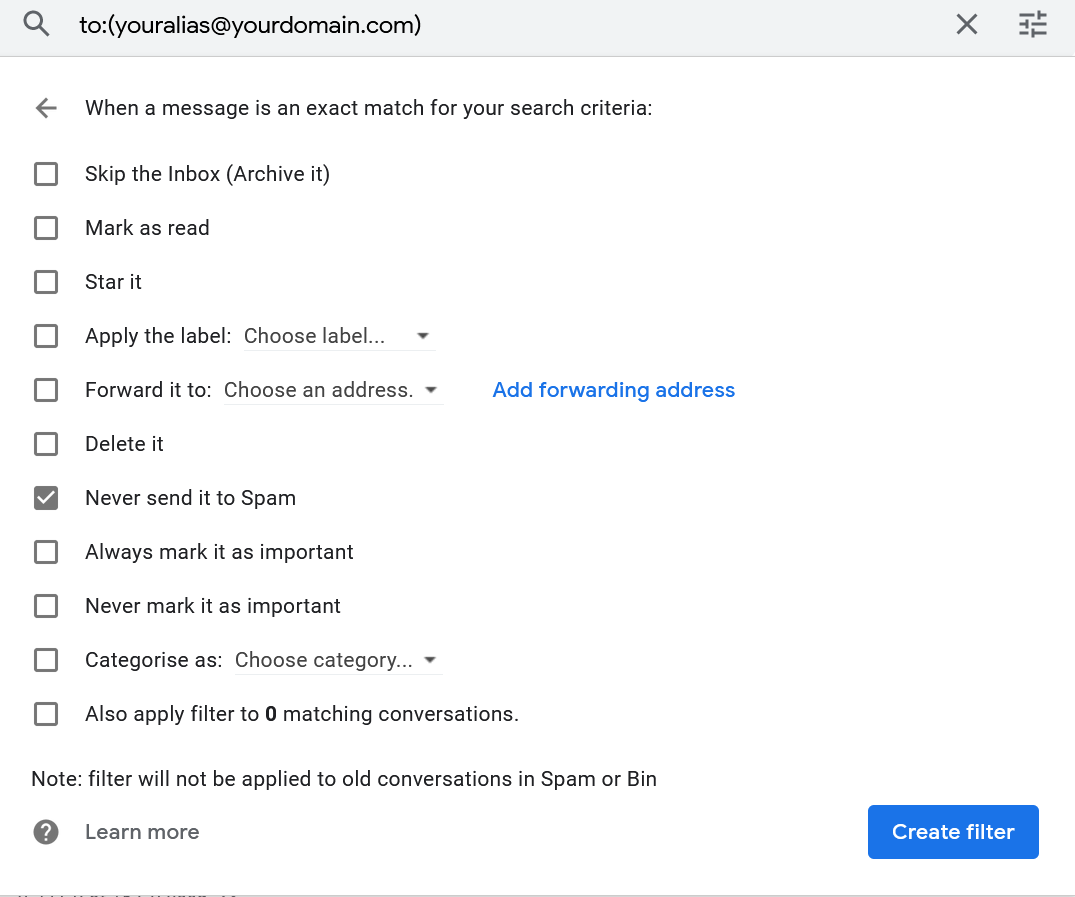
Step 3: Configure Spam Settings
- In the filter configuration screen, check the Never send it to Spam option
- Click Create filter to confirm
Result
Once the filter is activated, any messages arriving at your Gmail mailbox that have been forwarded via your ImprovMX alias will never be marked as spam.
Tip: Create separate filters for each ImprovMX alias you use, or use a wildcard approach by filtering on the domain portion (e.g.,
*@yourdomain.com) if Gmail supports it in your version.
Still have questions? Feel free to reach out to our support team!