Gmail with ImprovMX SMTP
Note: You must be a paid subscriber to use ImprovMX SMTP.
Additionally, this method references free/personal Gmail accounts. Mileage will vary for Google Workspace accounts and will depend on organizational settings.
Why connect Gmail with ImprovMX SMTP
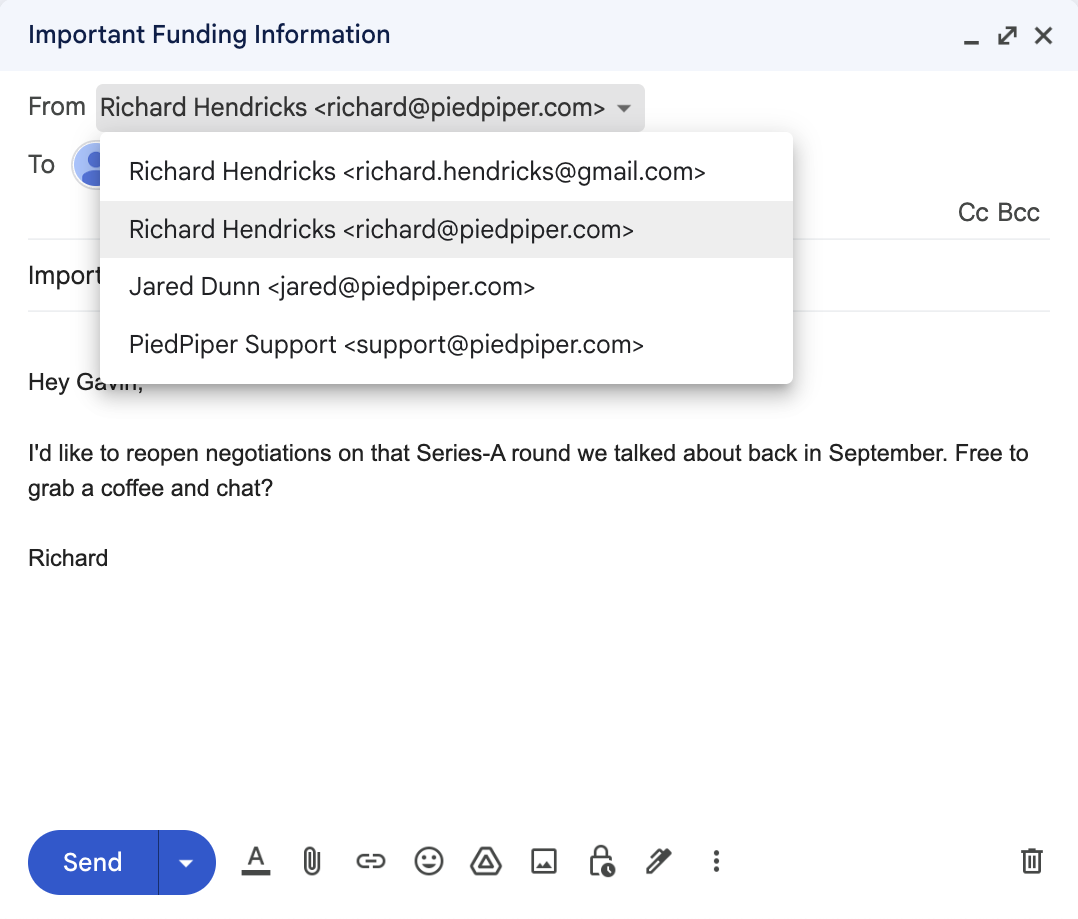
Send emails from your custom domain directly within your Gmail inbox!
Prerequisites:
- Create an SMTP Credential in the ImprovMX Dashboard
- Adding DKIM records in DNS
1: Create your alias in Gmail
Open Gmail, head to "Settings" (cogwheel), "See all Settings" , "Accounts and Import" and under "Send mail as" choose "Add another email address".
Fill in the settings as follows:
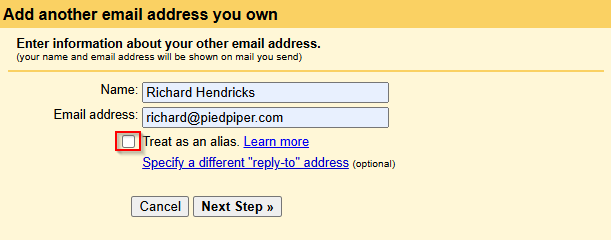
- Email address should be the custom alias address created in Step 1
- Treat as an alias should be unchecked.
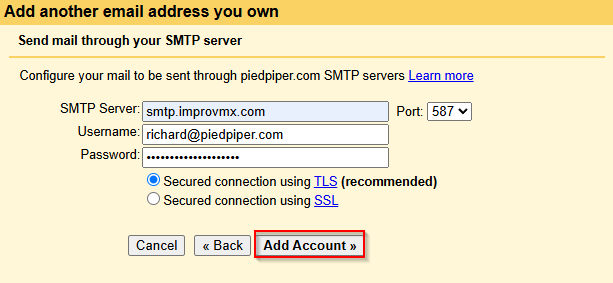
- SMTP server is
smtp.improvmx.com - Port should remain 587
-
Username is the new alias address, i.e.
richard@piedpiper.com - Password inserted is the password chosen in Step 1
- Secure connection with TLS
2: Confirm your alias
Check your inbox (the email address your alias forwards to). You'll receive a confirmation email from Gmail - either click the verification link or enter the code provided to confirm your alias.
3: Test it!
Open Gmail, select compose, in the from field choose your alias and enter a different recipient address( don't use the same Gmail address your alias forwards to).
Add a subject and message body, then click Send. Check the recipient inbox
to confirm the test email was received.
Success! You can now send emails from your alias using ImprovMX SMTP in Gmail.
Want to add more aliases? Just repeat the same steps.
If you run into any issues or have questions, feel free to reach out - we're happy to help!