White Labelling MX Records
White-labeled MX records are available on our paid plans.
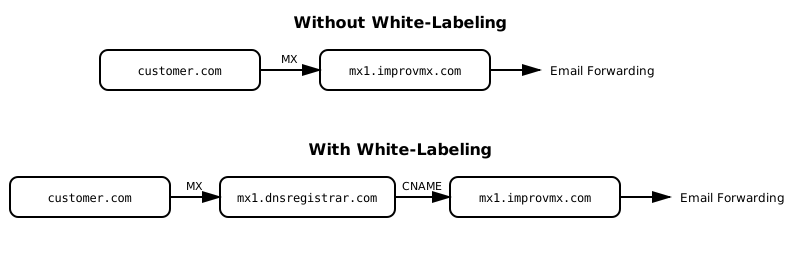
What is White Labeling?
White-labeling replaces the default ImprovMX MX record hostnames in your DNS
with your own branded hostnames. Instead of your customers' domains pointing
to
mx1.improvmx.com and mx2.improvmx.com, they point
to records under your own domain, like mx1.dnsregistrar.com and
mx2.dnsregistrar.com. Your branded hostnames still route to
ImprovMX's servers, so forwarding works exactly the same. It's a cosmetic
change only — your customers see your brand in their DNS instead of
ImprovMX.
Who is it for?
- DNS Registrars who manage email forwarding for customers and don't want those customers to see "improvmx" in their DNS records.
- Companies that want consistent branding across all public-facing DNS entries for domains they manage.
What it is NOT
- It does not change how email forwarding works — it is purely cosmetic.
- It is not needed if you're only forwarding email for your own domain — the standard MX records work fine.
Instructions
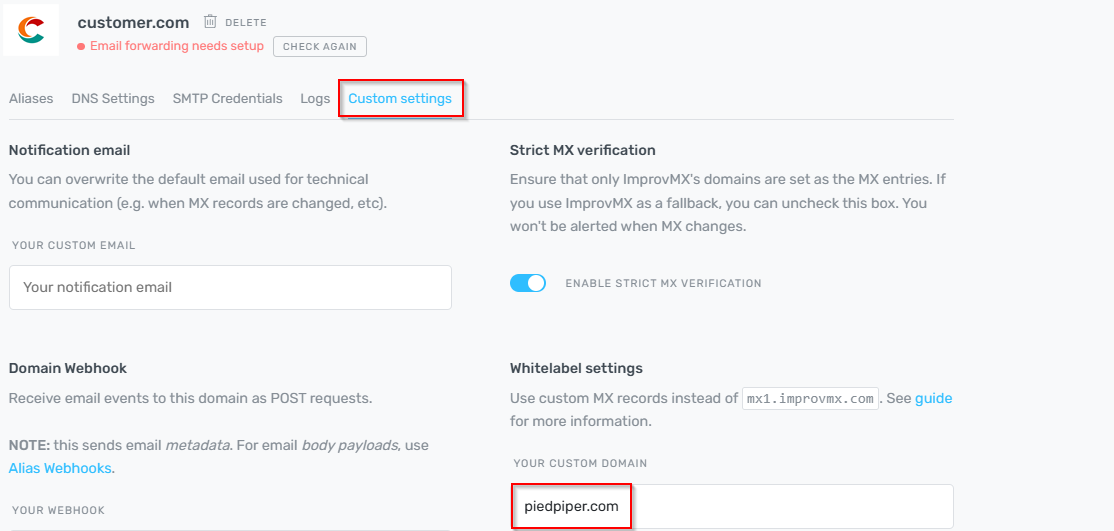
In the ImprovMX dashboard for your custom domain (e.g., customer.com), go to the Custom
Settings tab -> Whitelist Settings → Enter your white-label domain
(e.g.,
dnsregistrar.com).
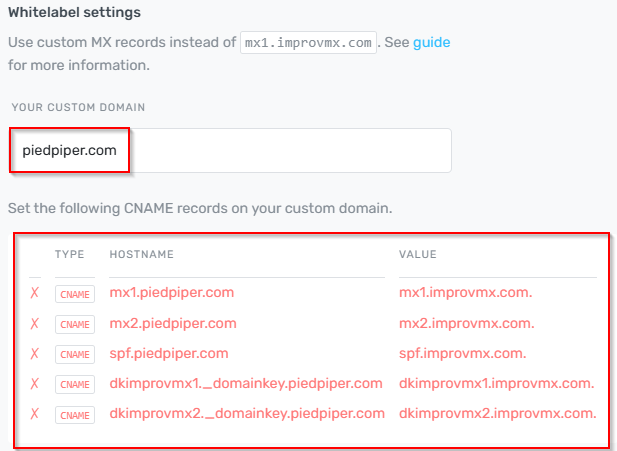
Add CNAME records shown into domain registrars DNS settings.
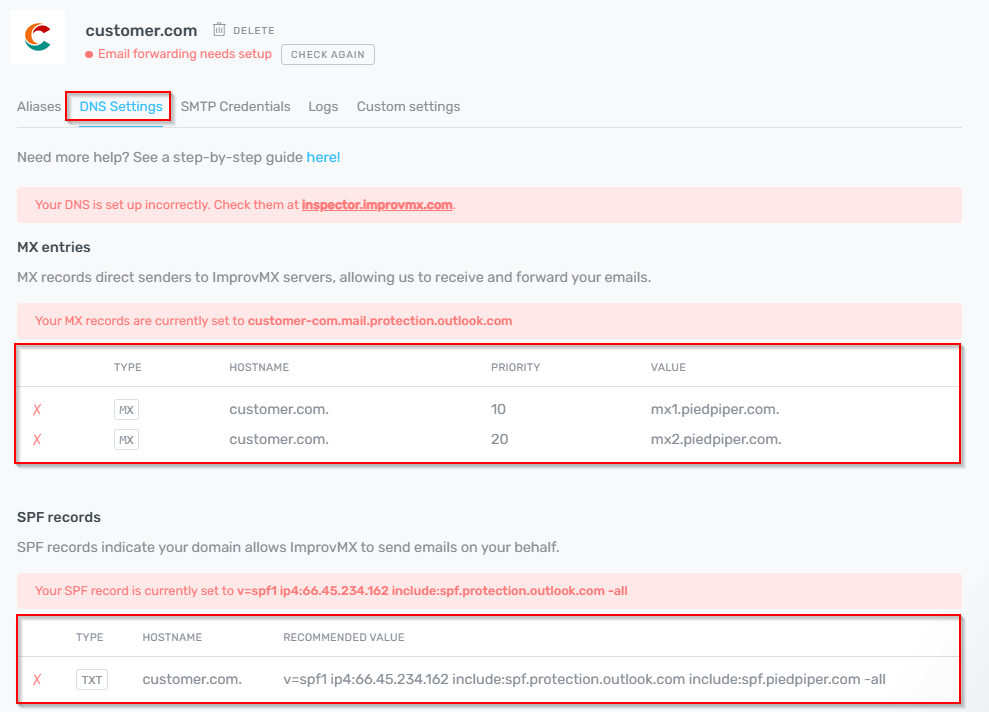
In the DNS Settings for customer.com, apply the provided
white-labeled MX and SPF records into the domain registrars DNS settings
instead of the default ImprovMX records.
That's it! You can now use your own branded MX records for a fully white-labeled experience.
Still have questions? Feel free to reach out to our support team!