Do you have multiple domains and hate juggling multiple email inboxes?
With ImprovMX, you can connect all your domain emails like support@piedpiper.com, investments@hooli.com and sales@piedpiper.com to
one Gmail account. Everything lands neatly in your Gmail inbox, ready to read,
reply and organize with ease.
Even better? You save money. Instead of paying for a separate Google Workspace or Office 365 mailbox for every address, you can manage all of them from one place at no extra cost. No extra accounts, just simple and centralized email handling.
The Power of One Inbox
Let's say you own piedpiper.com and want separate addresses for different purposes:
support@piedpiper.com– general inquiriessales@piedpiper.com– customer leadsinvestments@hooli.com– investments
With ImprovMX, forward all of them to a single Gmail address, i.e. richard.hendricks@gmail.com.
You'll receive all incoming messages there instantly, without paying for separate
Google Workspace accounts.
Sending from Multiple Aliases
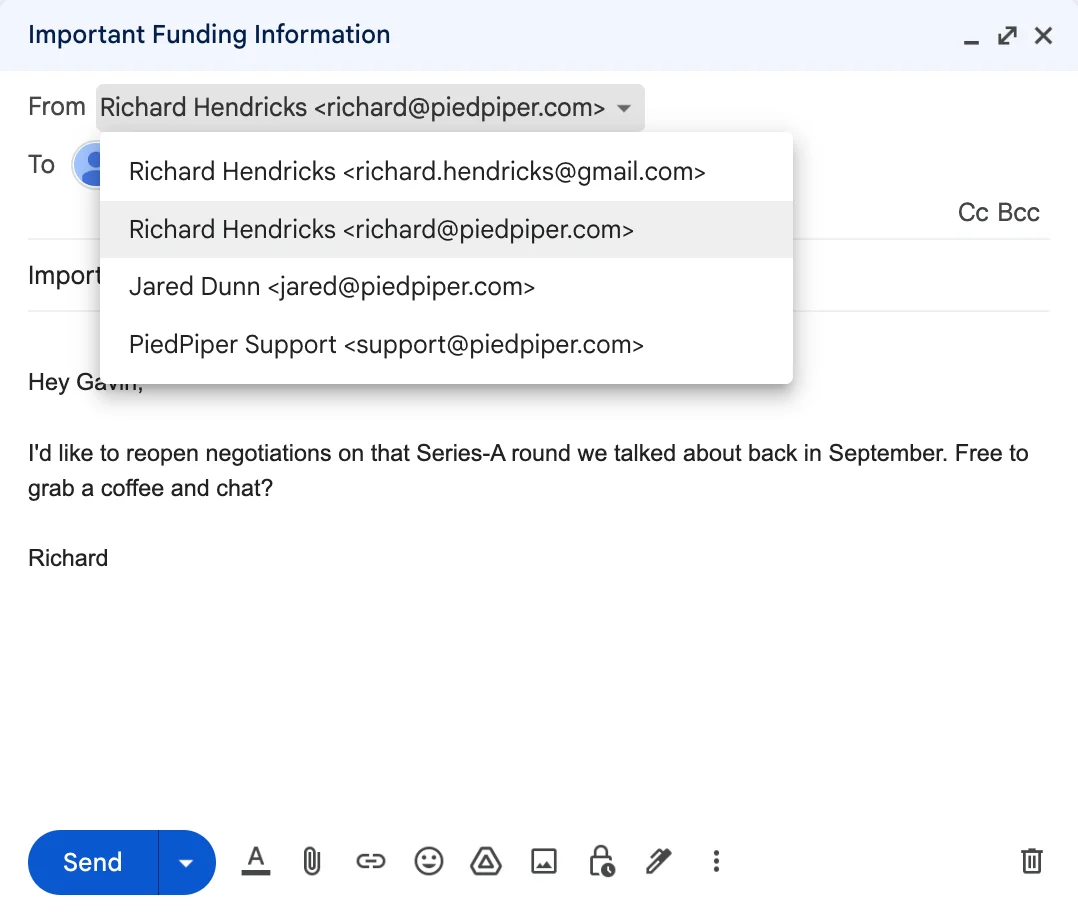
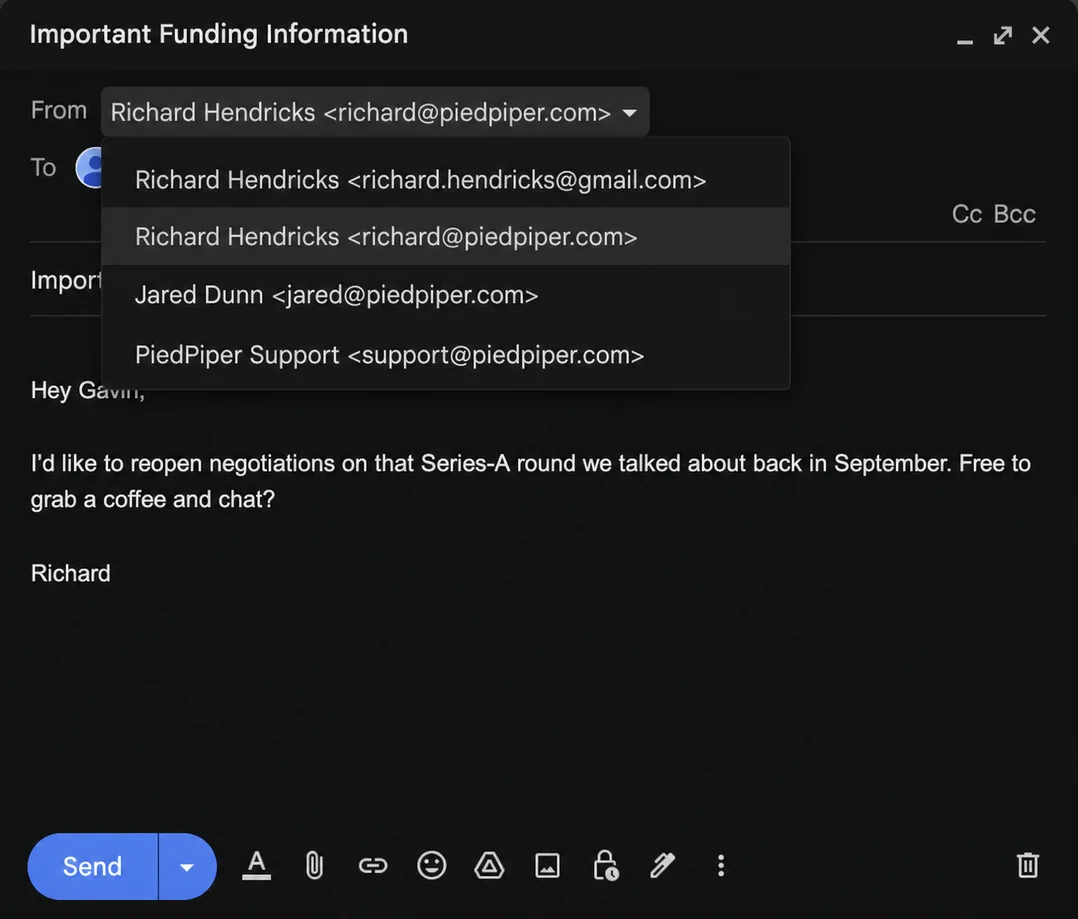
ImprovMX doesn't just forward your mail — it lets you reply as each alias directly from Gmail.
Once you've added your aliases using our Gmail SMTP guide, you can choose which address to use for every time you compose or reply.
Example:
- Reply to a customer as
sales@piedpiper.com - Follow up on a question as
support@piedpiper.com
Your recipients will only see your professional domain address, not your personal Gmail.
Keep Everything Organized with Gmail Labels
To stay on top of things, you can use Gmail filters and labels to automatically tag messages by alias:
-
All emails sent to
sales@piedpiper.comget labeled Sales -
All emails to
investments@hooli.comget labeled Investments - Everything else goes under General
With labels, you can easily segment your inbox across different identities for better organization and powerful search.