This is a blog explaining how to sync ImprovMX domains and aliases directly from Google Sheets. Each row edit triggers a Google Apps Script that creates or updates the domain, alias, and wildcard alias using the ImprovMX API.
Sheet layout
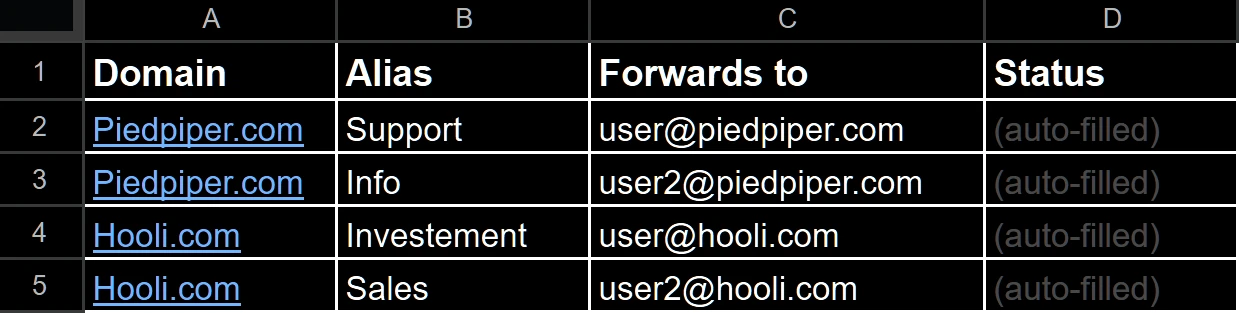
Create a Google Sheet with these columns:
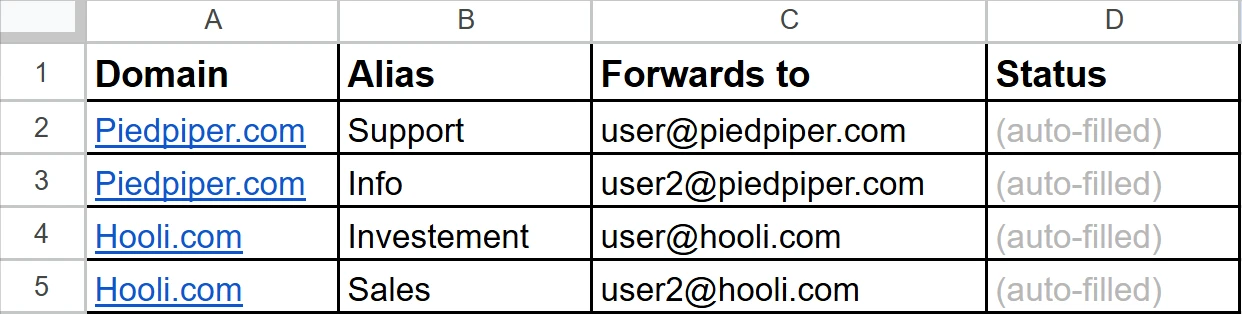
What the script does
On every row edit:
- Creates the domain if it doesn't exist
- Creates or updates the alias
- Creates or updates the wildcard (
*) alias - Writes the result to the Status column
Setup
- Open the sheet
- Go to Extensions → Apps Script
- Paste the script below
- Replace
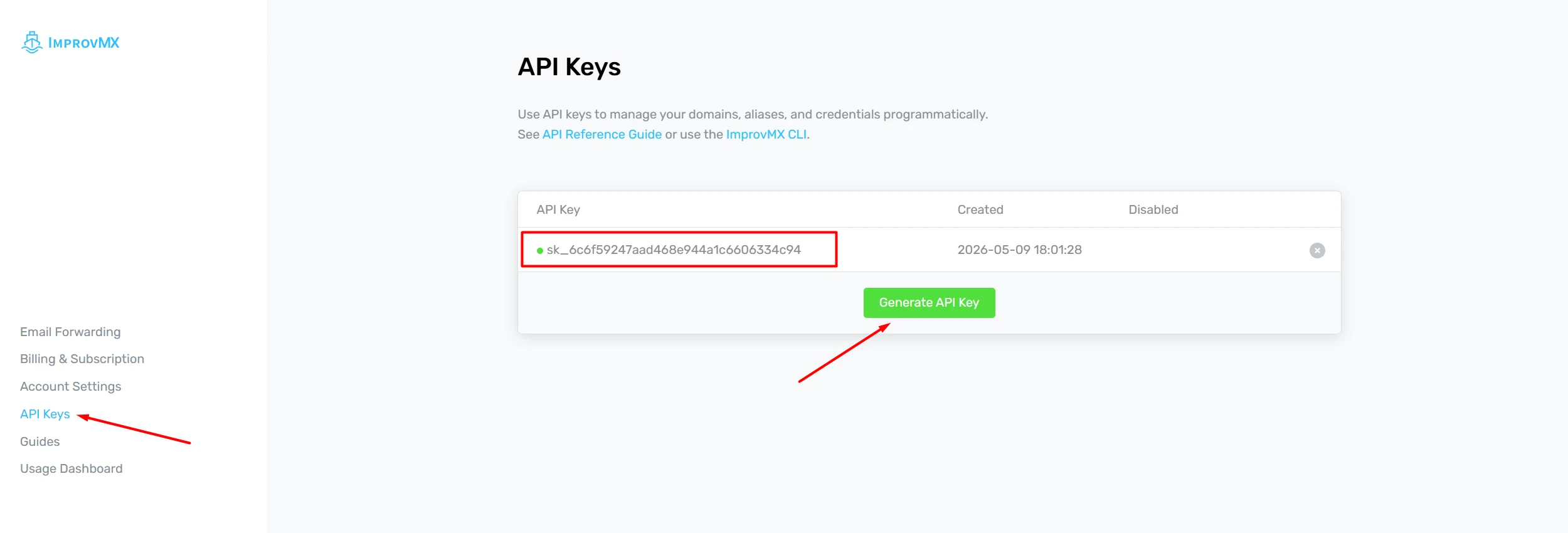
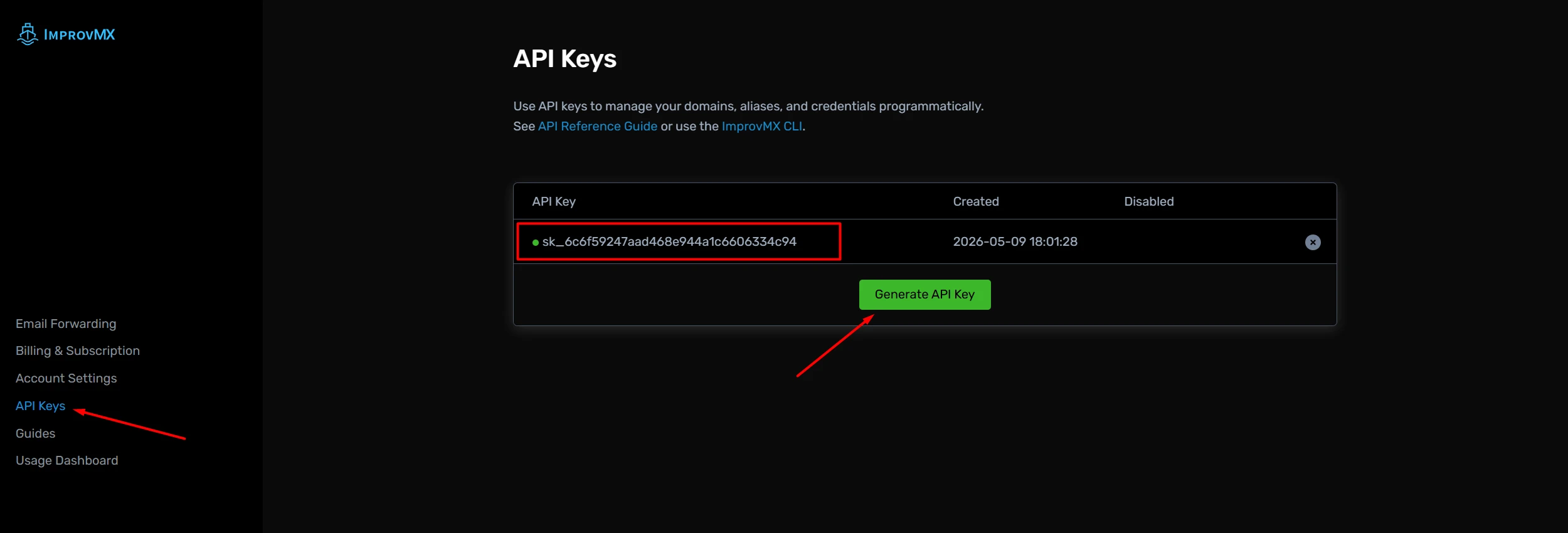
YOUR_API_KEY_HEREwith the ImprovMX API key:
Now you just save and exit.
Google Apps Script
const BASE_URL = "https://api.improvmx.com/v3";
const API_KEY = "YOUR_API_KEY_HERE";
const SHEET_NAME = "Sheet1";
const START_ROW = 4;

function onEdit(e) {
  if (!e) return;
  const sheet = e.source.getActiveSheet();
  if (sheet.getName() !== SHEET_NAME) return;
  processRow(sheet, e.range.getRow());
}

function processRow(sheet, row) {
  if (row < START_ROW) return;
  const [domain, alias, forwardTo, status] =
    sheet.getRange(row, 1, 1, 4).getValues()[0];
  if (!domain || !alias || !forwardTo) {
    sheet.getRange(row, 4).setValue("Missing data");
    return;
  }
  const done = `Synced: ${domain} | ${alias} → ${forwardTo}`;
  if (status === done) return;
  try {
    ensureDomain(domain);
    upsertAlias(domain, alias, forwardTo);
    upsertAlias(domain, "*", forwardTo);
    sheet.getRange(row, 4).setValue(done);
  } catch (err) {
    sheet.getRange(row, 4).setValue(`Error: ${err.message}`);
  }
}

function ensureDomain(domain) {
  const res = api("post", "/domains", { domain: domain.trim() });
  if (
    res.code === 200 ||
    res.code === 201 ||
    res.body.includes("already registered")
  ) return;
  throw new Error(res.body);
}

function upsertAlias(domain, alias, forwardTo) {
  const clean = alias.includes("@") ? alias.split("@")[0].trim() : alias.trim();
  const path = `/domains/${encodeURIComponent(domain)}/aliases/${encodeURIComponent(clean)}`;
  const res = api("put", path, { forward: forwardTo });
  if (res.code === 200 || res.code === 201) return;
  throw new Error(res.body);
}

function api(method, path, payload) {
  const r = UrlFetchApp.fetch(BASE_URL + path, {
    method,
    contentType: "application/json",
    payload: JSON.stringify(payload),
    headers: { Authorization: "Basic " + Utilities.base64Encode("api:" + API_KEY) },
    muteHttpExceptions: true
  });
  return { code: r.getResponseCode(), body: r.getContentText() };
}
Enable the trigger
In Apps Script, open Triggers:
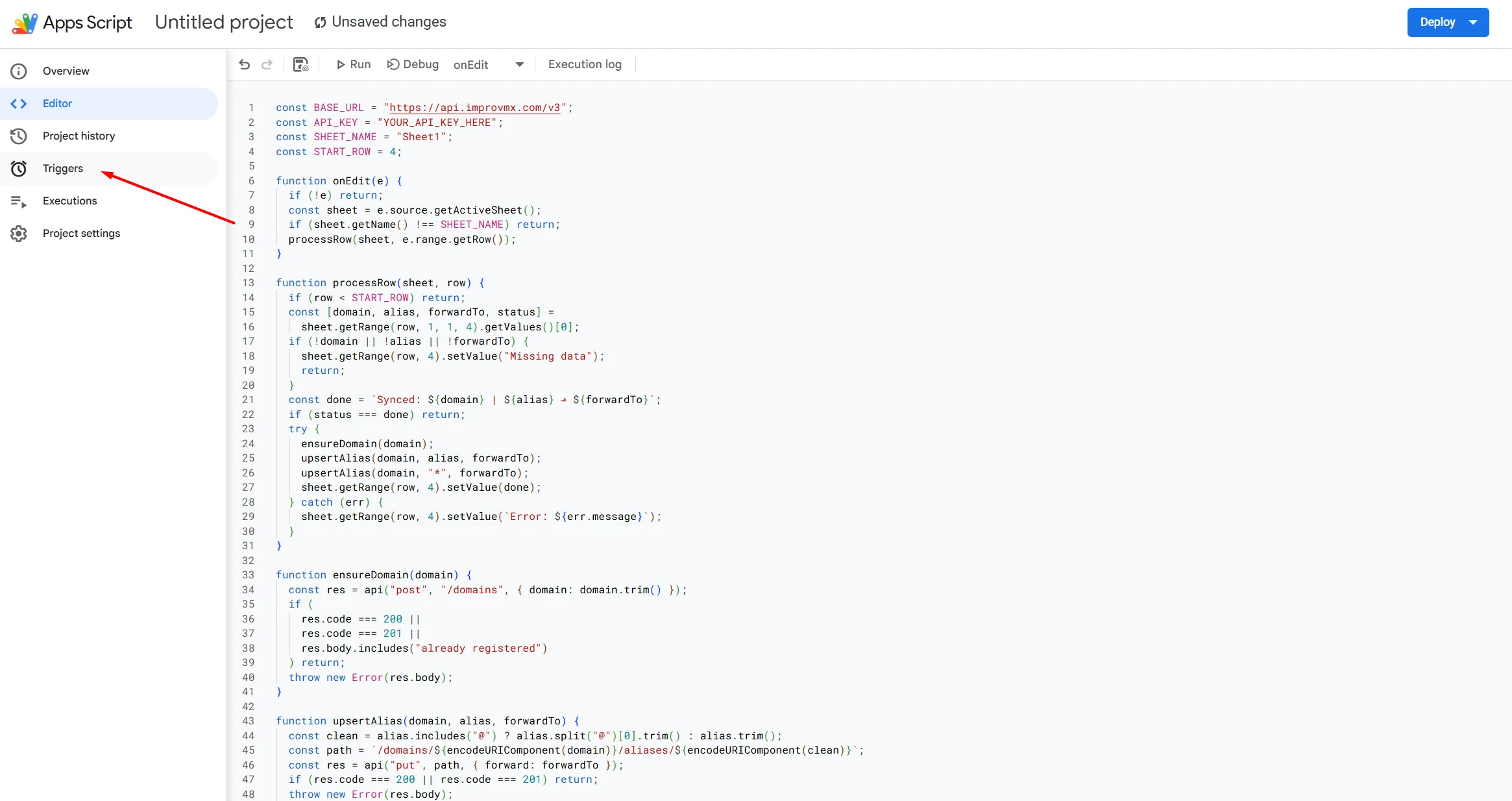
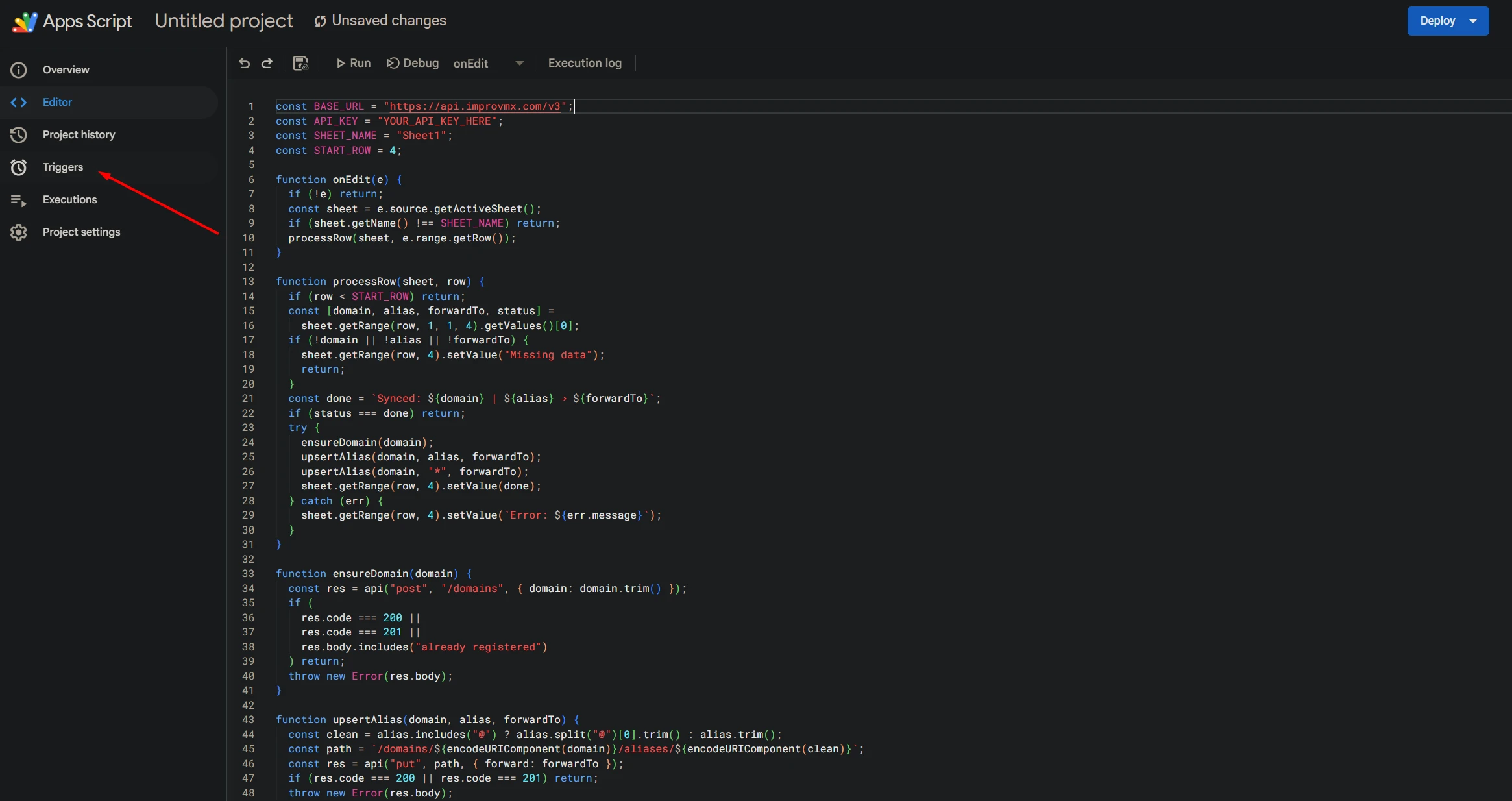
Add a trigger:
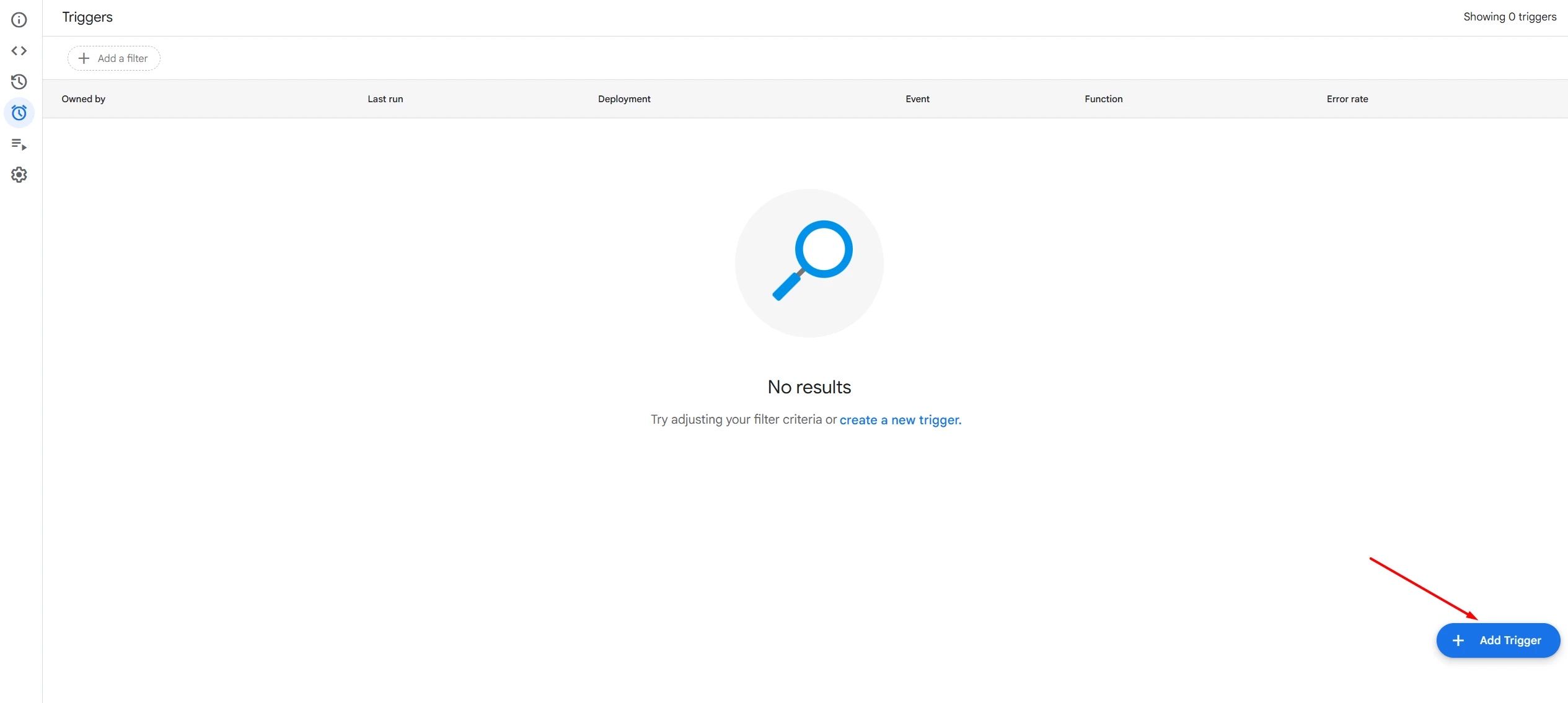
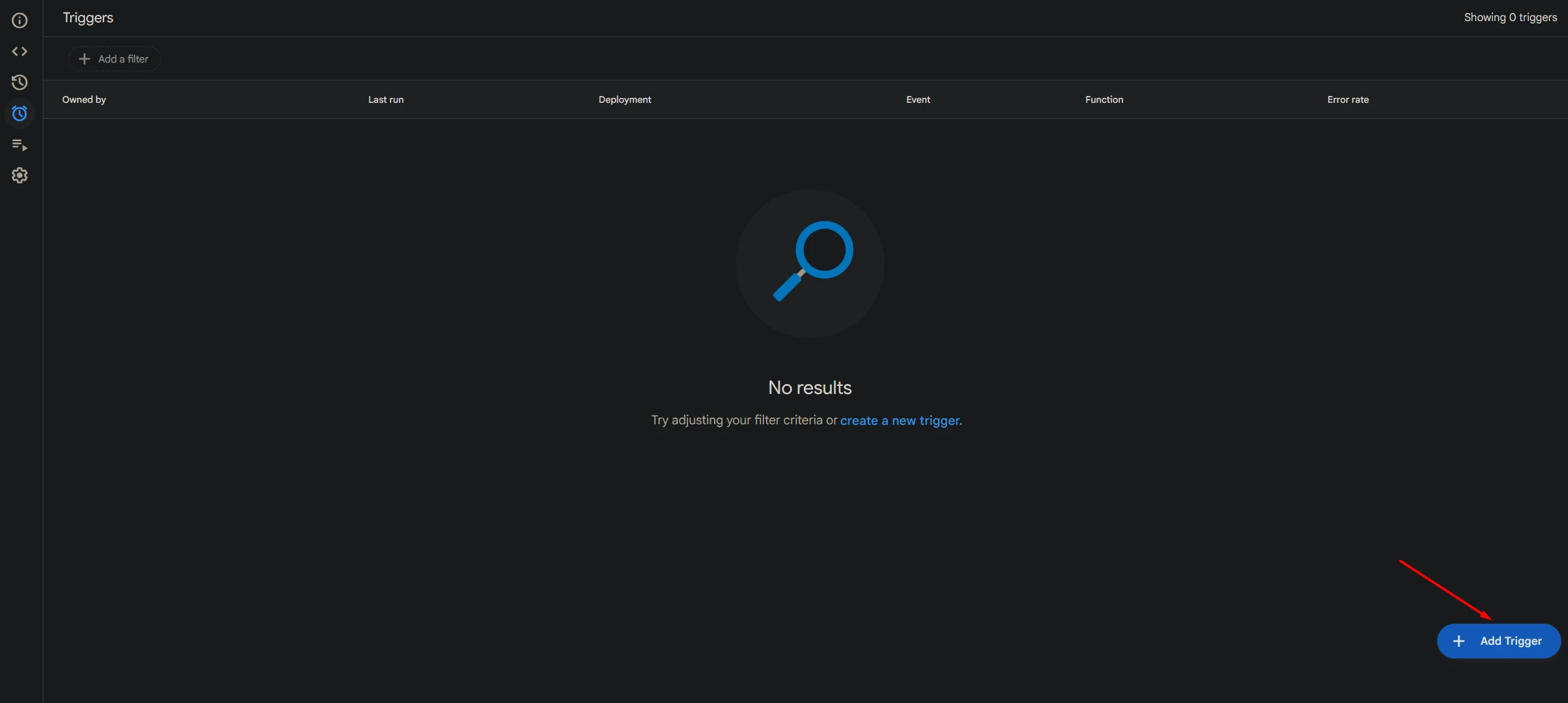
- Function:
onEdit - Event type:
On edit
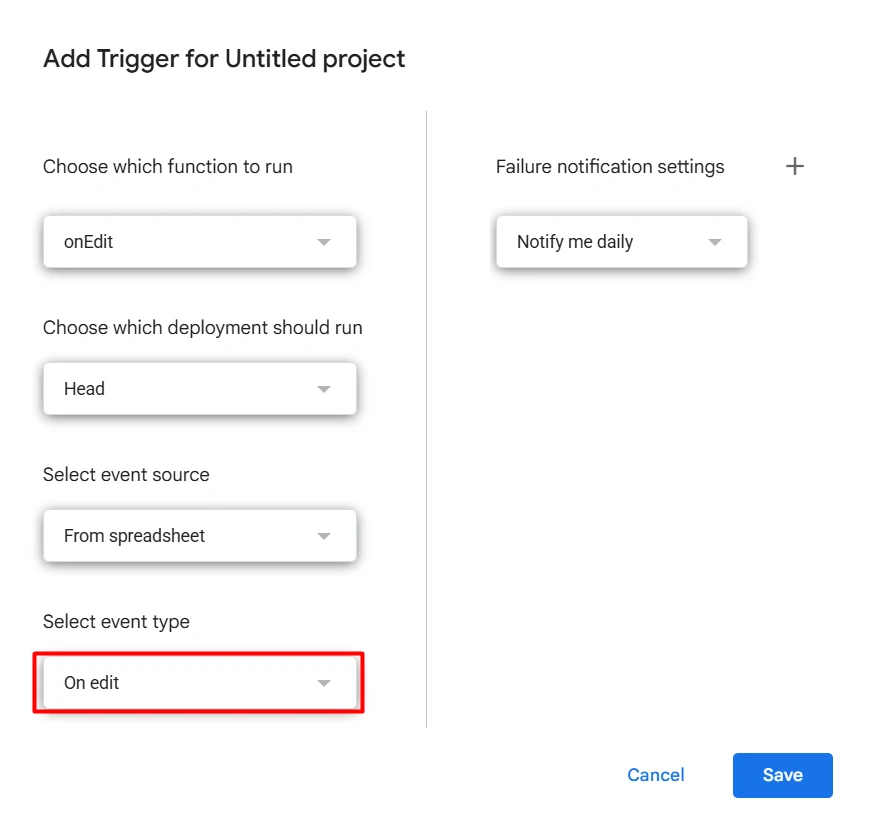
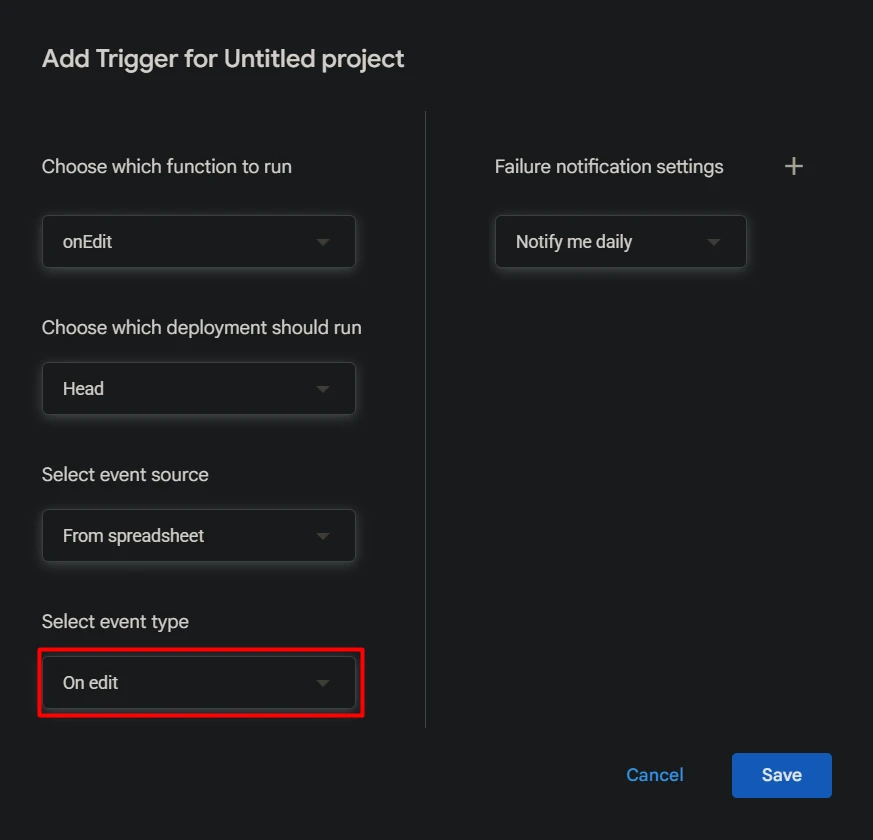
Then save and authorize the script.
Result
Editing a row keeps ImprovMX domains and aliases in sync with the spreadsheet. The sheet becomes the source of truth.